Difficulty - Easy
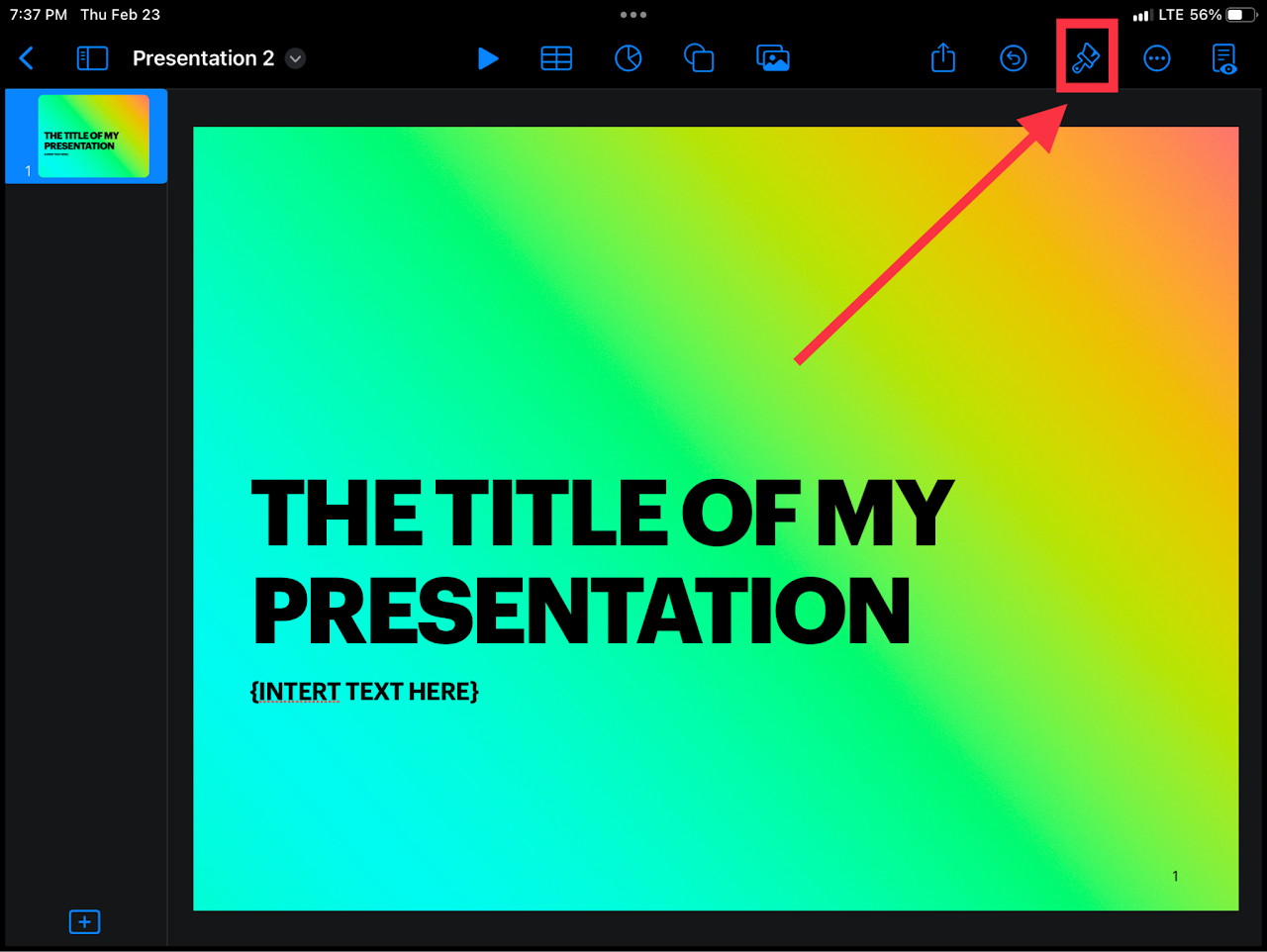
### Step 1 - Open the "Document Format" Menu Select the paint brush in the top right of your screen to change the formatting.Make sure no other items are selected when opening the menu.
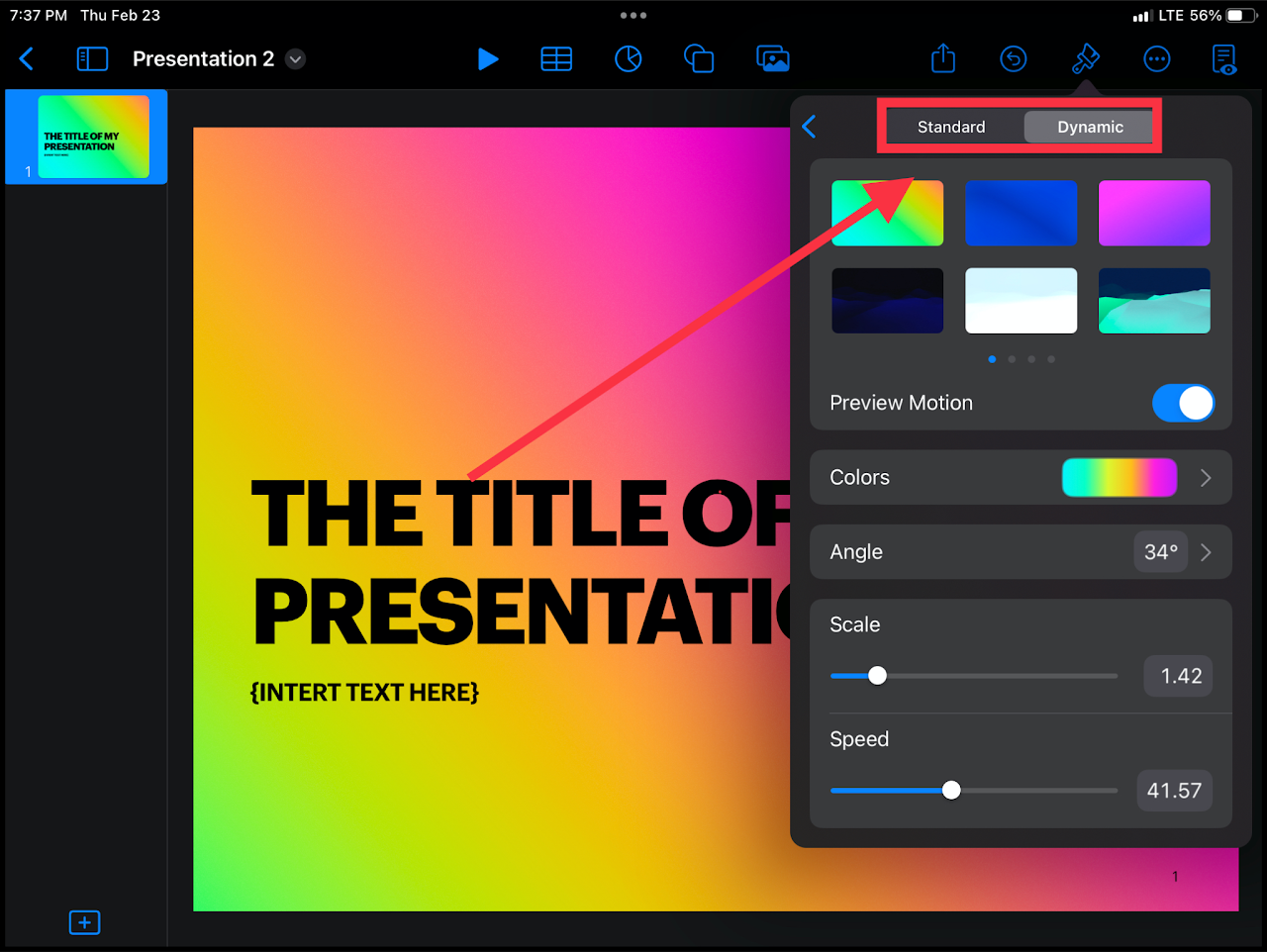
[](https://wiki.pwbstem.club/uploads/images/gallery/2024-01/change-keynote-background-step-1.png) ### Step 2 - Select "Background Settings" In the menu just opened, select "Background". [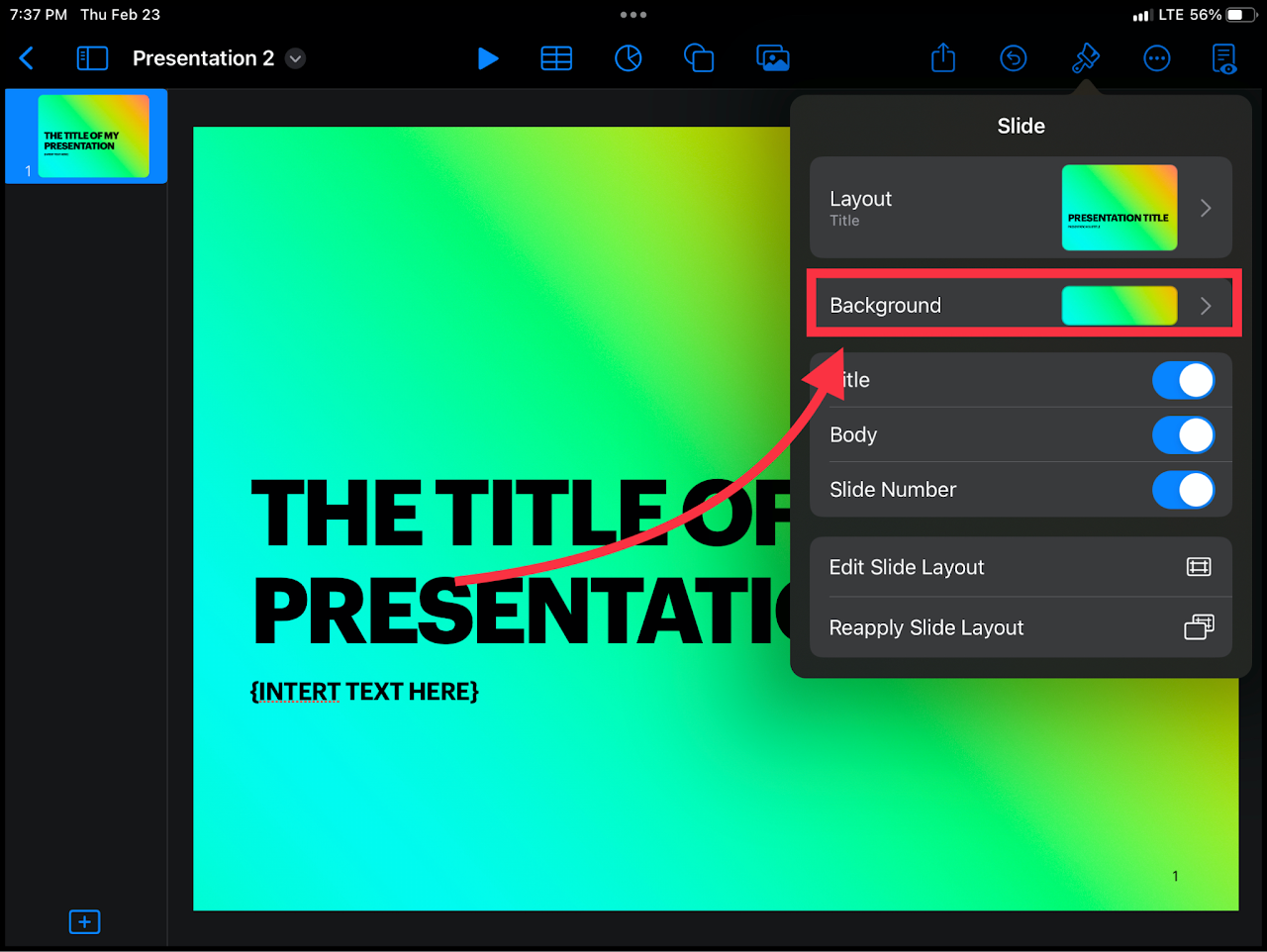](https://wiki.pwbstem.club/uploads/images/gallery/2024-01/change-keynote-background-step-2.png) ### Step 3 - Select a New Background Select a mode for your background (Standard or Dynamic) and select your desired background.Dynamic backgrounds change throughout the presentation.
[](https://wiki.pwbstem.club/uploads/images/gallery/2024-01/change-keynote-background-step-3.png)