Difficulty - Medium
### The Issue When you open Keynote or Pages, the screen shows that the application "needs an update". This document shows the fix: [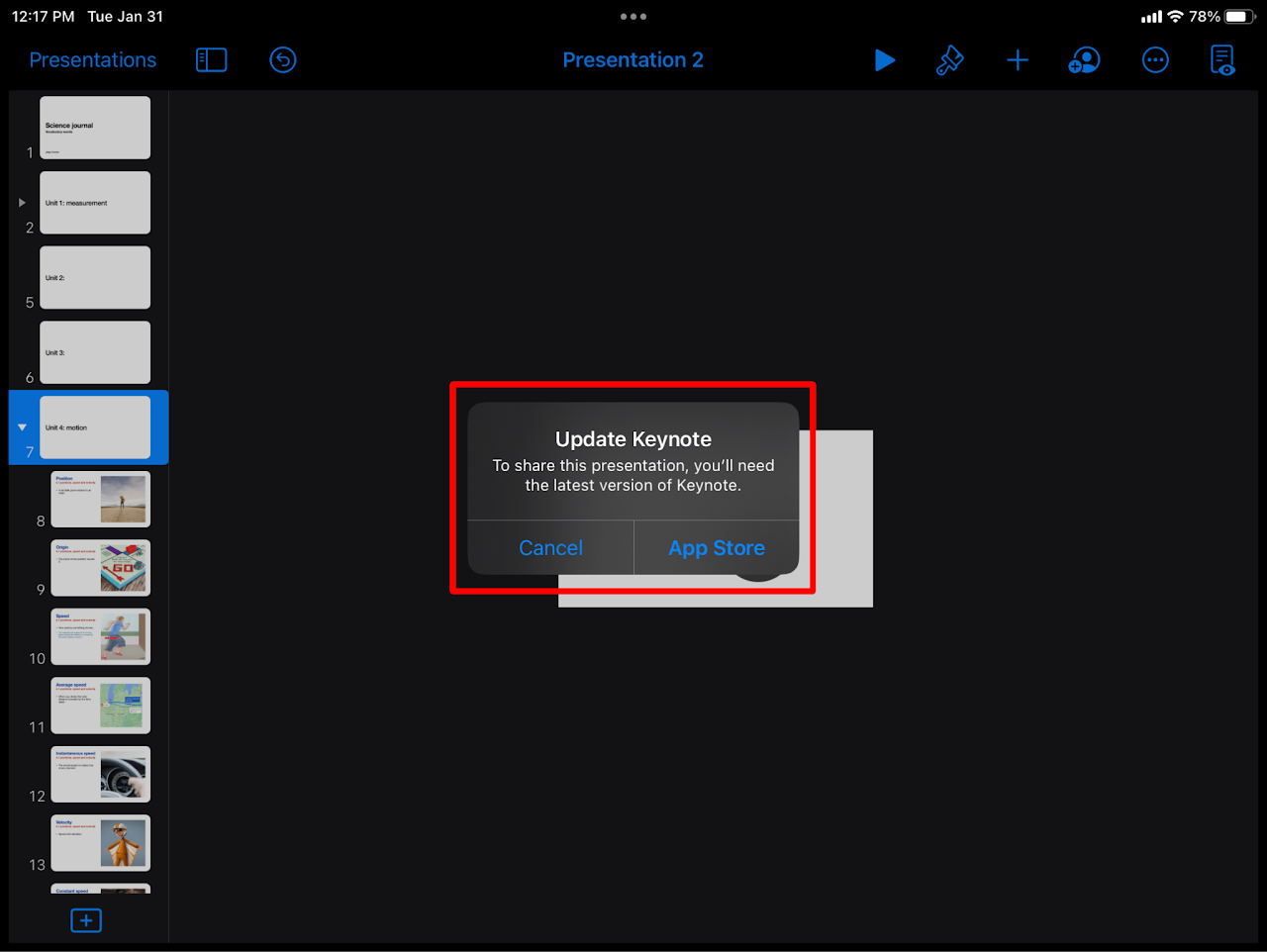](https://wiki.pwbstem.club/uploads/images/gallery/2024-01/update-keynote-pages-the-issue.png) ### Step 1 - Delete Keynote/ PagesArticle/ Instructions Here
All files saved in keynote or pages NEED to be saved elsewhere. By deleting these applications, you run the risk of deleting files as well.
### Step 2 - Open "Self Service" Open the self service app on your iPad. [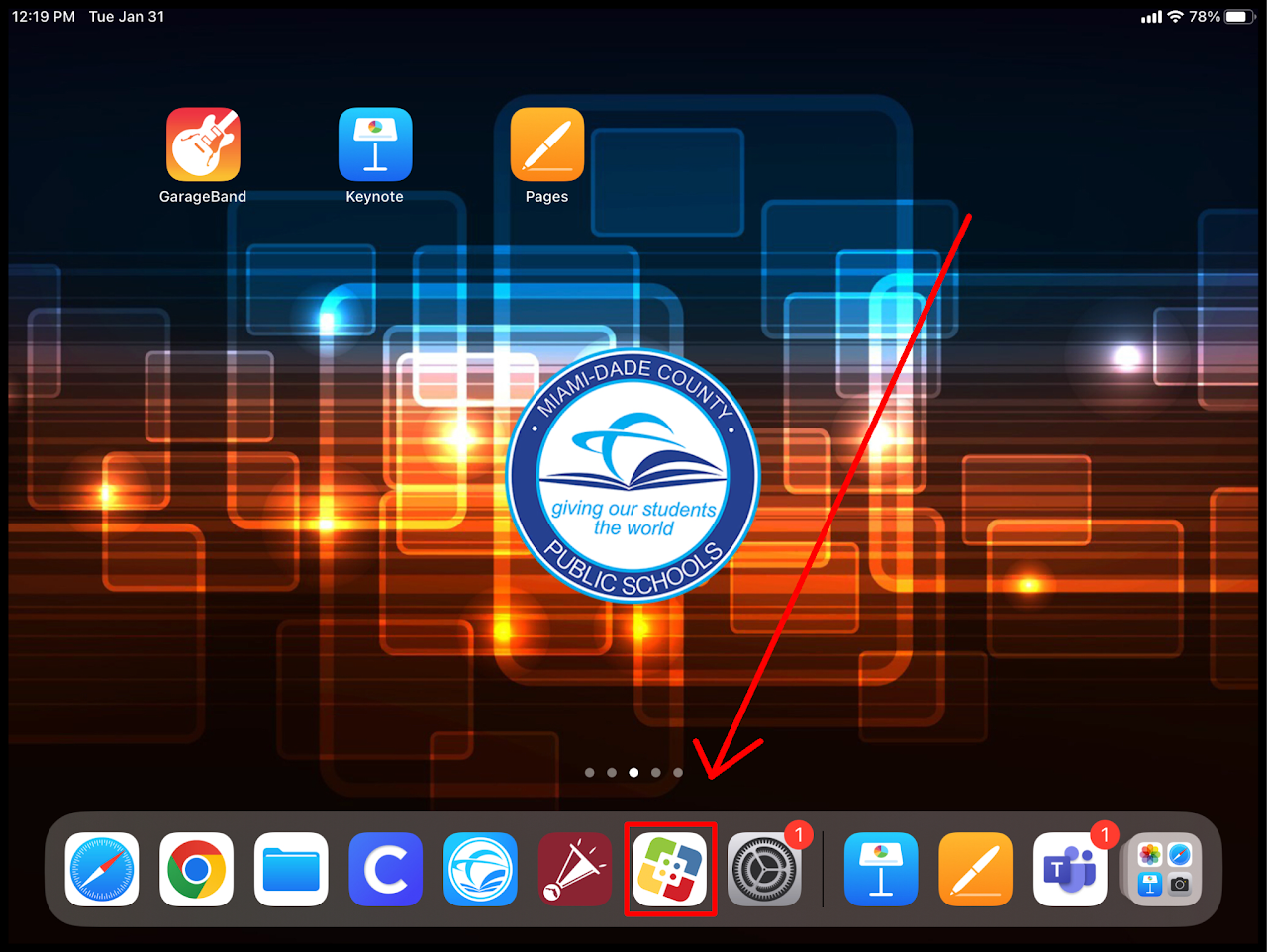](https://wiki.pwbstem.club/uploads/images/gallery/2024-01/SRjmedia.png) ### Step 3 - Re-Install Keynote/Pages Find the application that needs to be reinstalled on the list. Tap reinstall. [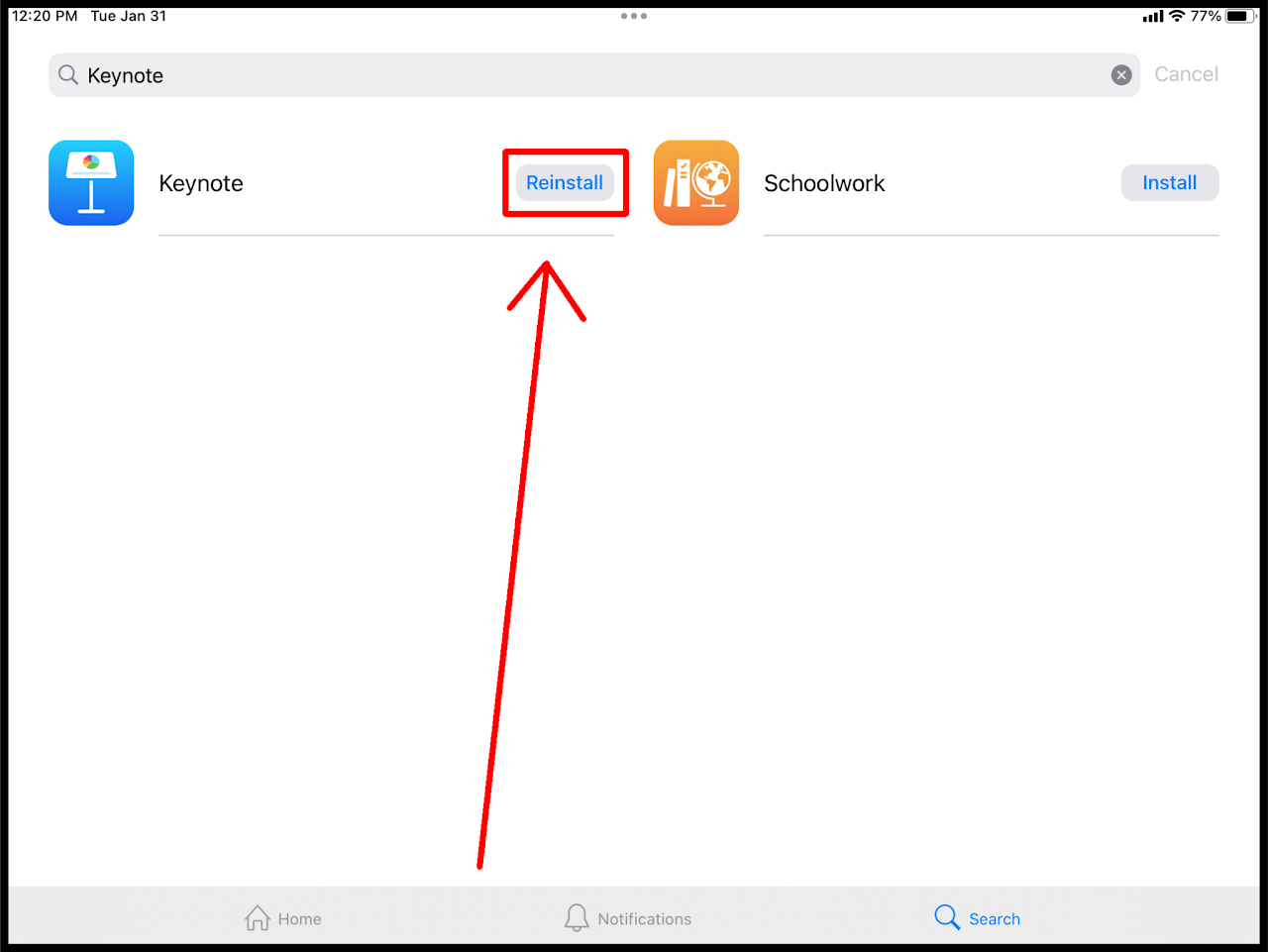](https://wiki.pwbstem.club/uploads/images/gallery/2024-01/9iSmedia.png)Make sure the app is FULLY UNINSTALLED before reinstalling. Reinstalling without a complete uninstall will be problematic.
# How To Create a New Document in PagesDifficulty - Easy
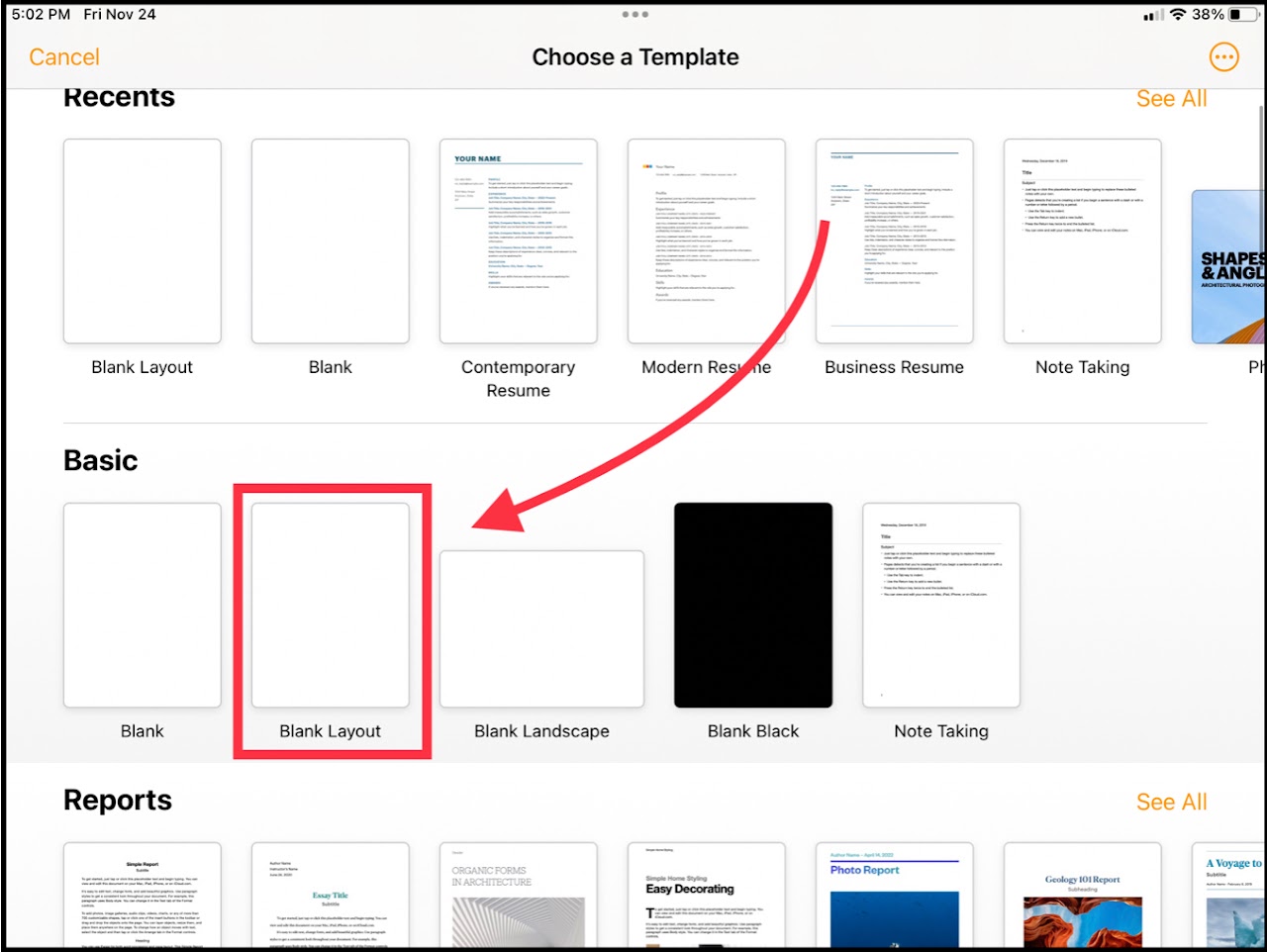
### Step 1 - Open Pages, Create Document Open up the "Pages" application on your iPad. Select either the plus button on the top right, or the "Create Document" option on the screen. [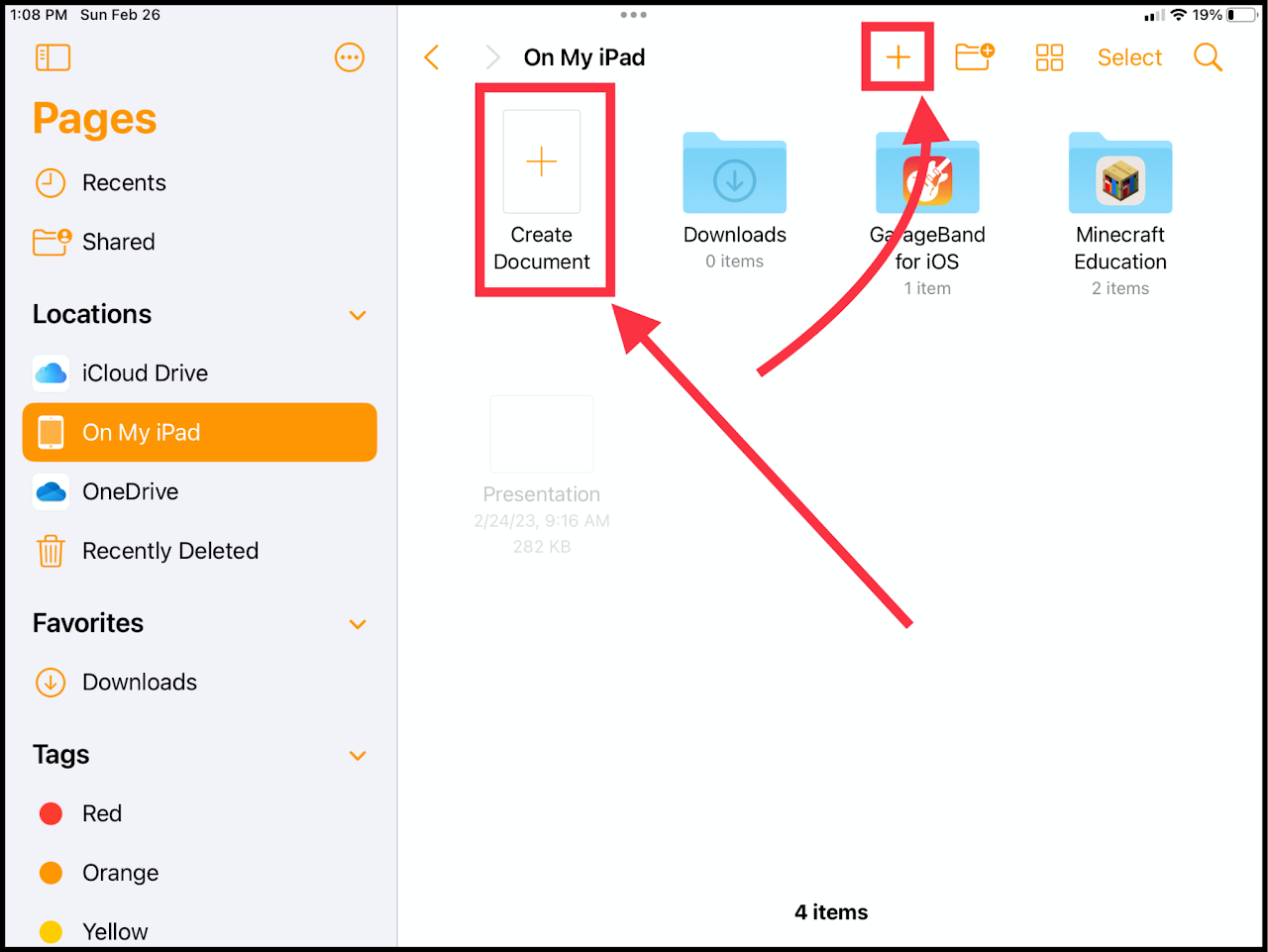](https://wiki.pwbstem.club/uploads/images/gallery/2024-01/M8zmedia.png) ### Step 2 - Choose Template Select a template of your liking. For a standard letter (8.5 x 11 in) paper, select "Blank Layout".Adding additional pages to a file created with a template will add blank pages.
[](https://wiki.pwbstem.club/uploads/images/gallery/2024-01/yZbmedia.jpg) ## How to add text in "Blank Layout" In order to type in the newly created document, create a text box using the "Objects" icon on the top of screen, and selecting text. [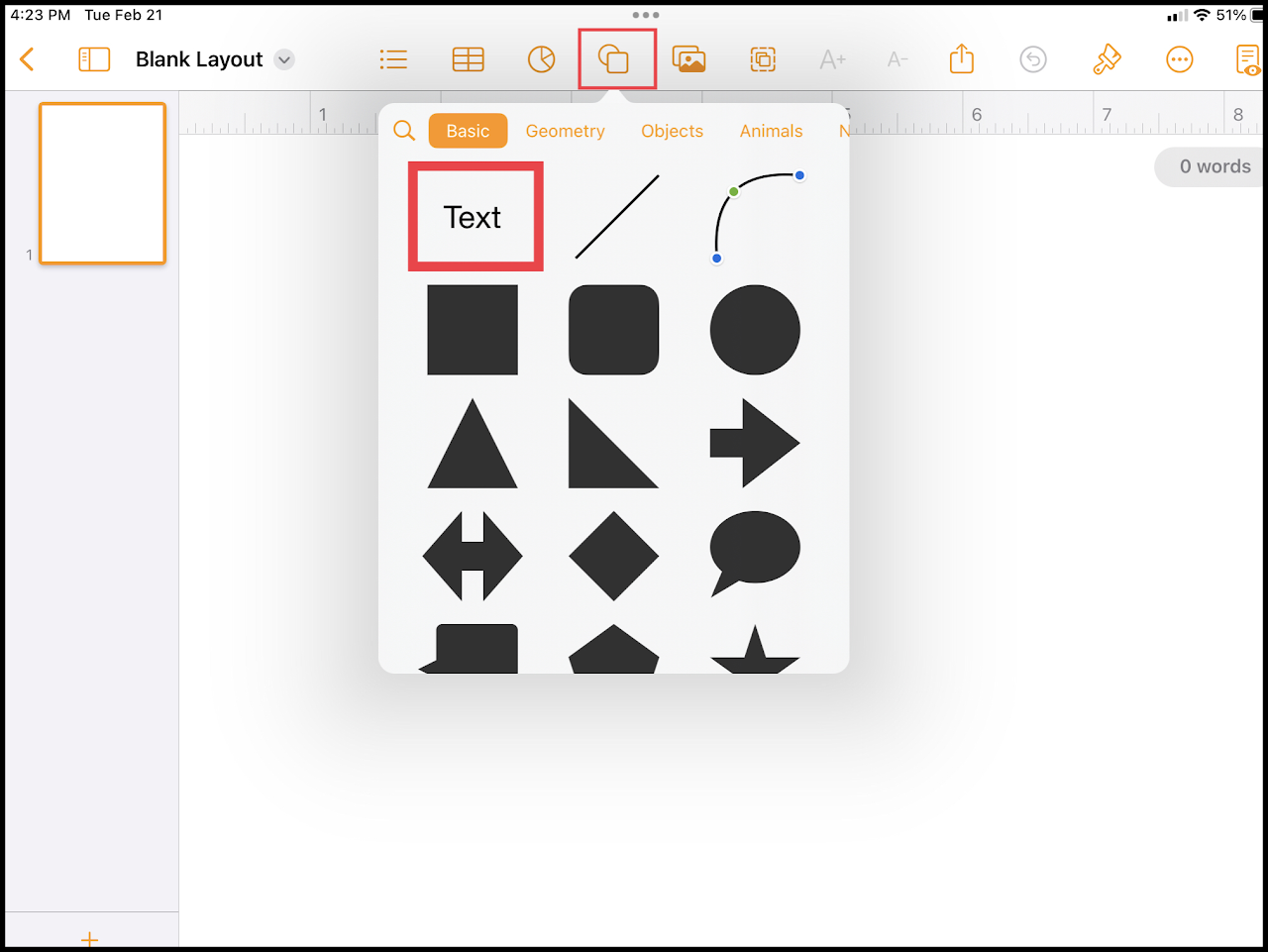](https://wiki.pwbstem.club/uploads/images/gallery/2024-01/2Iumedia.png) ## How to add pages in "Blank Layout" ### Step 1 - Enable "Page Thumbnails" On the top left of the screen select the "side bar" icon and enable "Page Thumbnails" [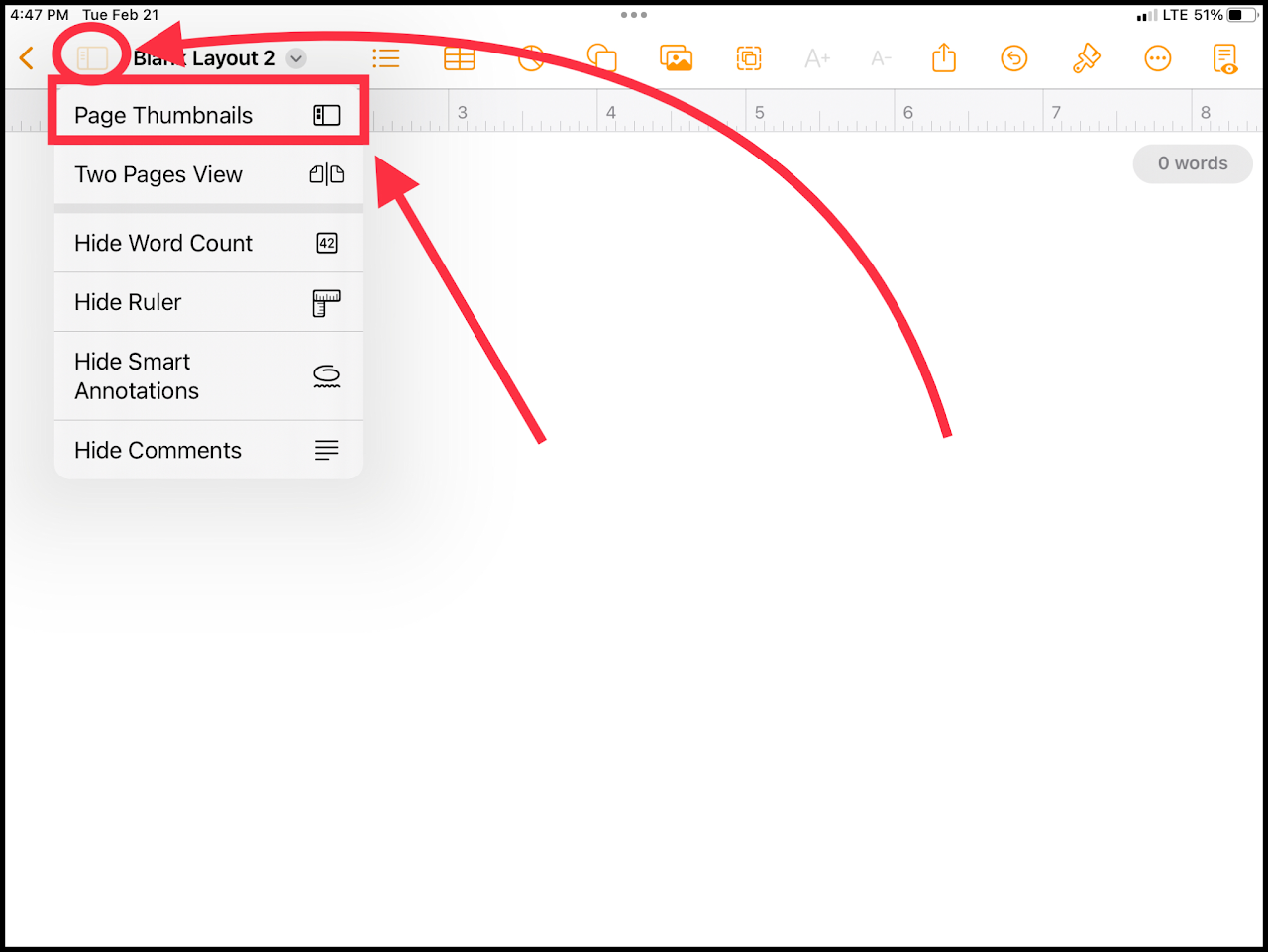](https://wiki.pwbstem.club/uploads/images/gallery/2024-01/P3amedia.png) ### Step 2 - Adding New Pages Tap the plus icon at the bottom of the page thumbnails list. [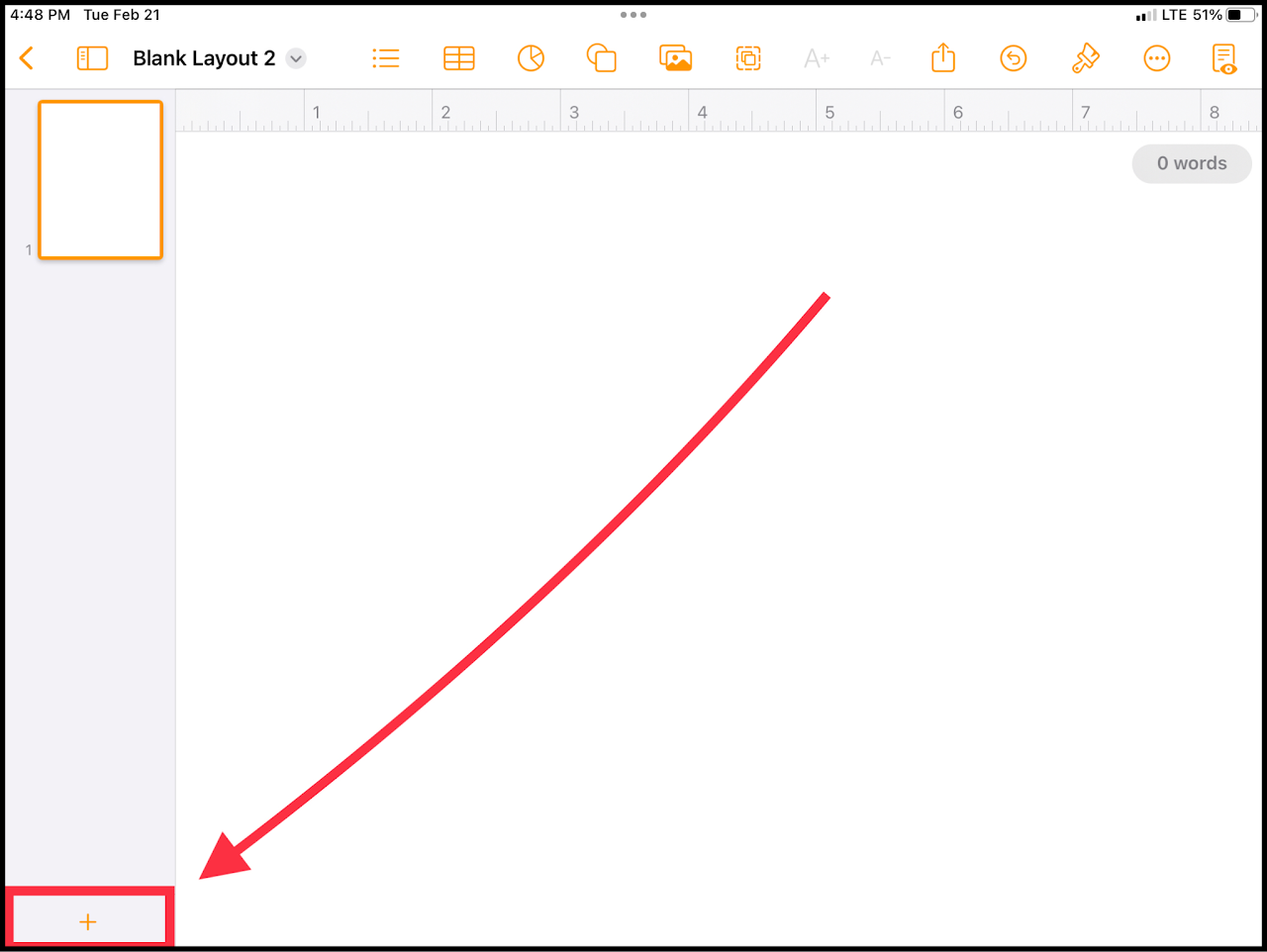](https://wiki.pwbstem.club/uploads/images/gallery/2024-01/a05media.png) # How To Collaborate on a Document in PagesDifficulty - Medium
### Step 1 - Open "Document Options" Select the title of your document in the top left of the screen to edit your document options. [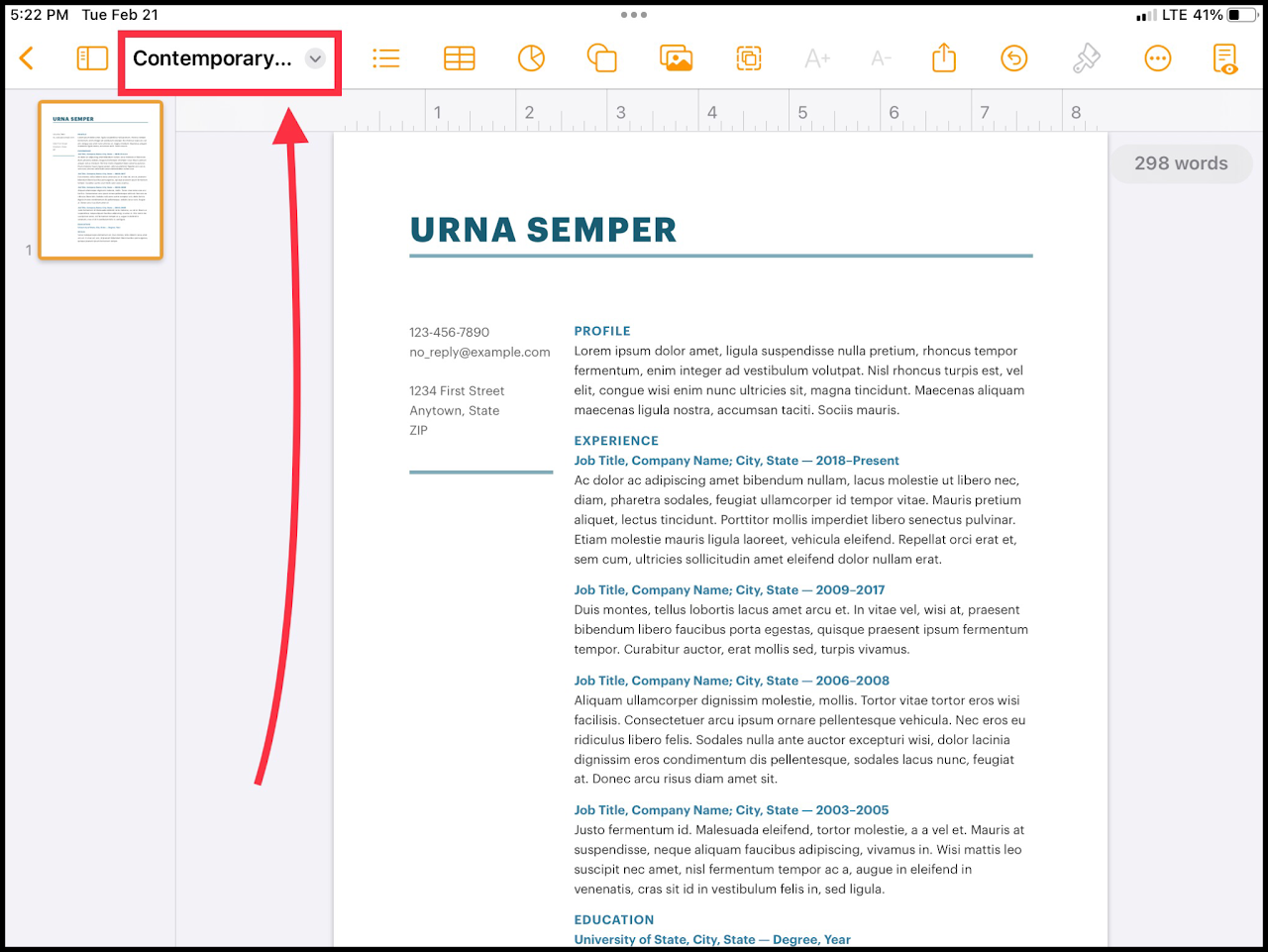](https://wiki.pwbstem.club/uploads/images/gallery/2024-01/jxgmedia-1.png)If your document is not saved in iCloud, do so now. Or else, the remaining steps will not apply.
The document does not have to be complete before collaborating. All edits are synchronized with the collaborators.
### Step 2 - Open "Document Sharing Options" Select the share icon to the right of the title in the drop down menu. [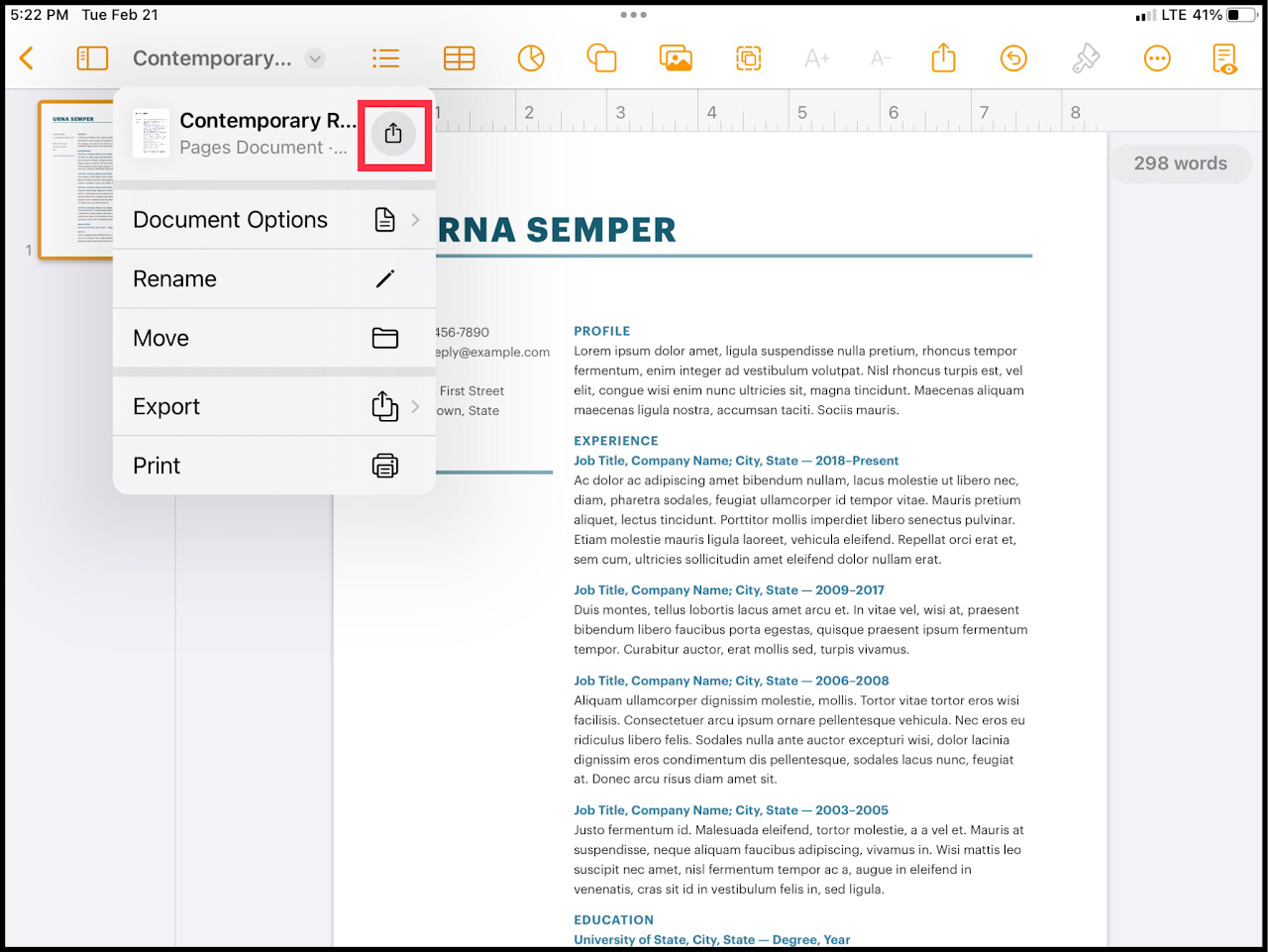](https://wiki.pwbstem.club/uploads/images/gallery/2024-01/DnImedia.png) ### Step 3 - Configure Collaboration Select the "Send Copy" option and switch it to "Collaborate". This will create a live file or link to share with others. [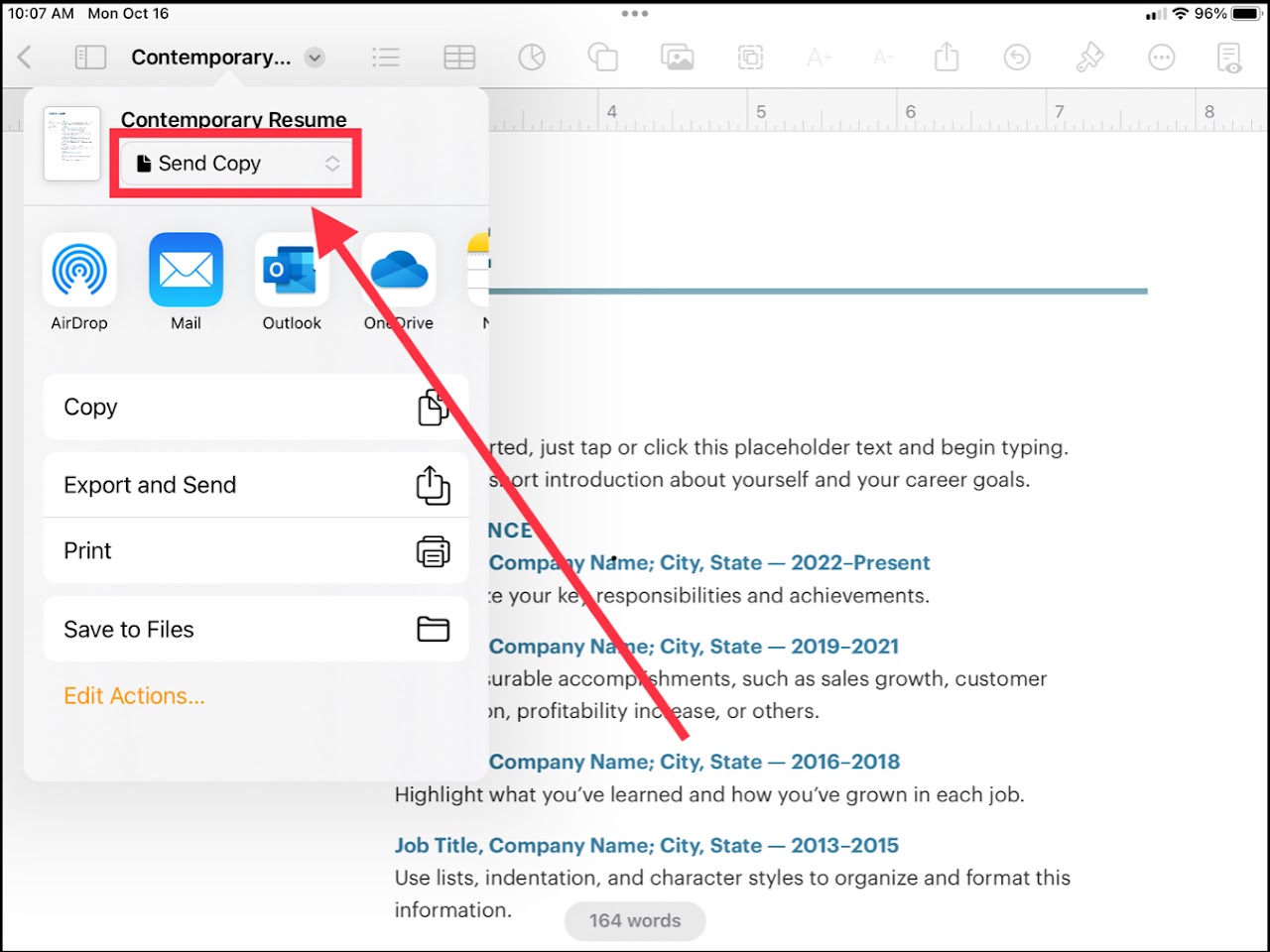](https://wiki.pwbstem.club/uploads/images/gallery/2024-01/media.jpg) [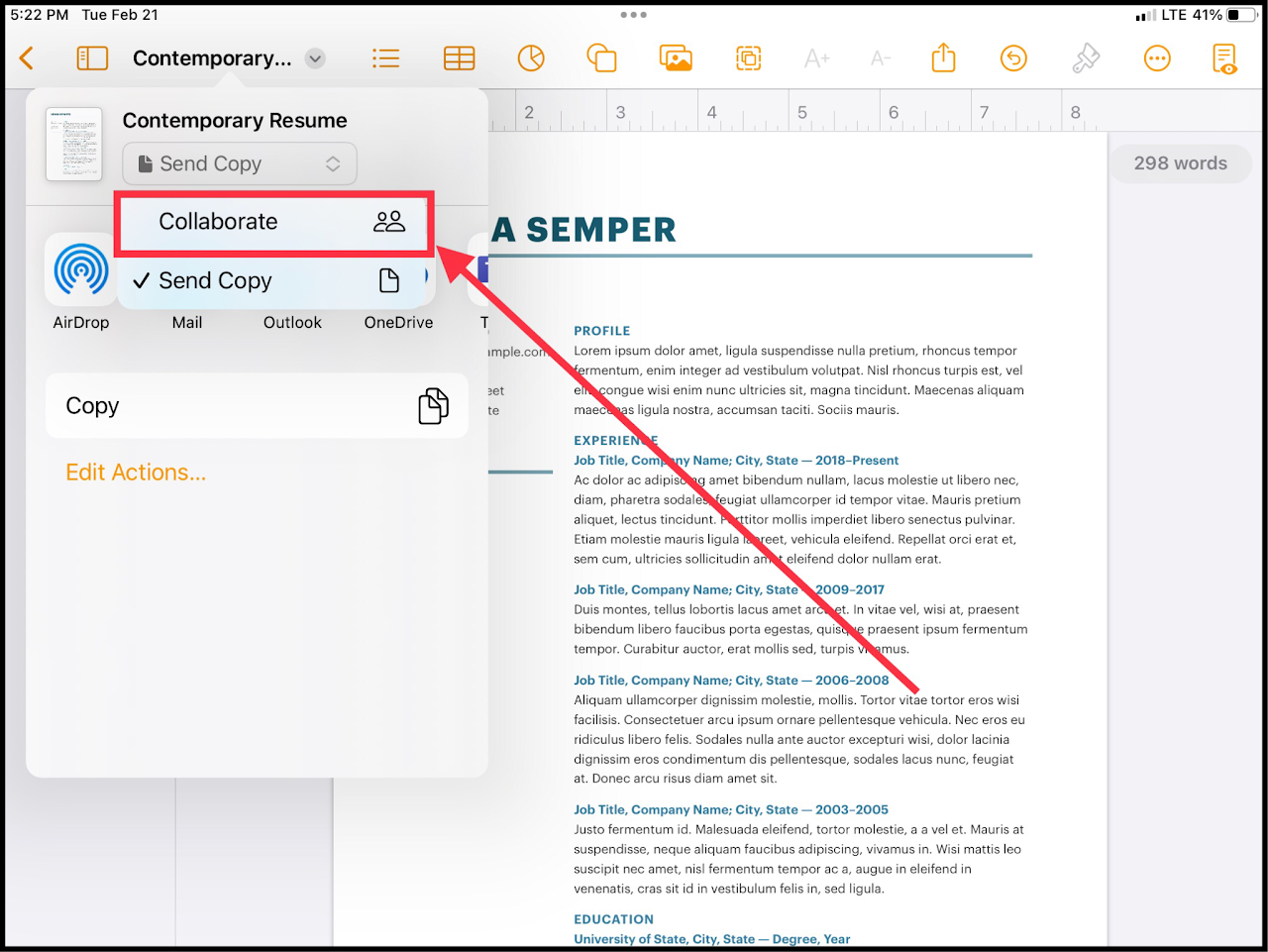](https://wiki.pwbstem.club/uploads/images/gallery/2024-01/64Ymedia.png) ### Step 5 - Select Share Method This is the way your new live file/ link will get shared with the collaborators. Select what you feel comfortable with.We recommend using "Invite with Link". Feel free to experiment with other options.
[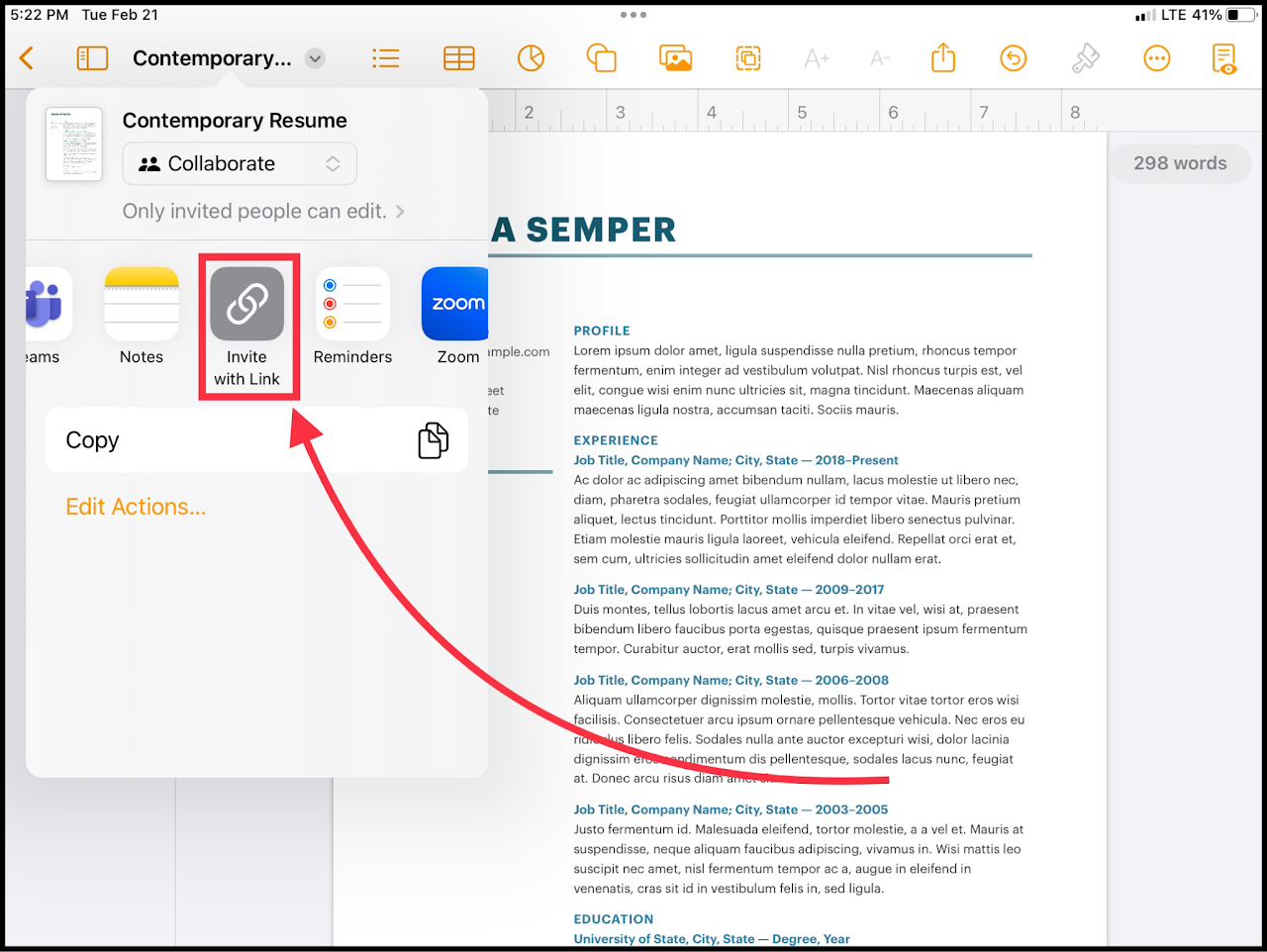](https://wiki.pwbstem.club/uploads/images/gallery/2024-01/KrOmedia.png) ### Step 6 - Add Collaborators Next, you'll add authorized users to your link. This ensures that people without access cannot edit your file.Teacher Emails: [teachernameorid@dadeschools.net](mailto:teacherid@dadeschools.net)
Student Emails:
Some teachers may have different emails than what would be assumed. Check on your MDCPS portal to confirm their E-Mail address.
After pressing "Share Link", select a sharing method such as **Outlook** (Recommended) to send the link to an email address.
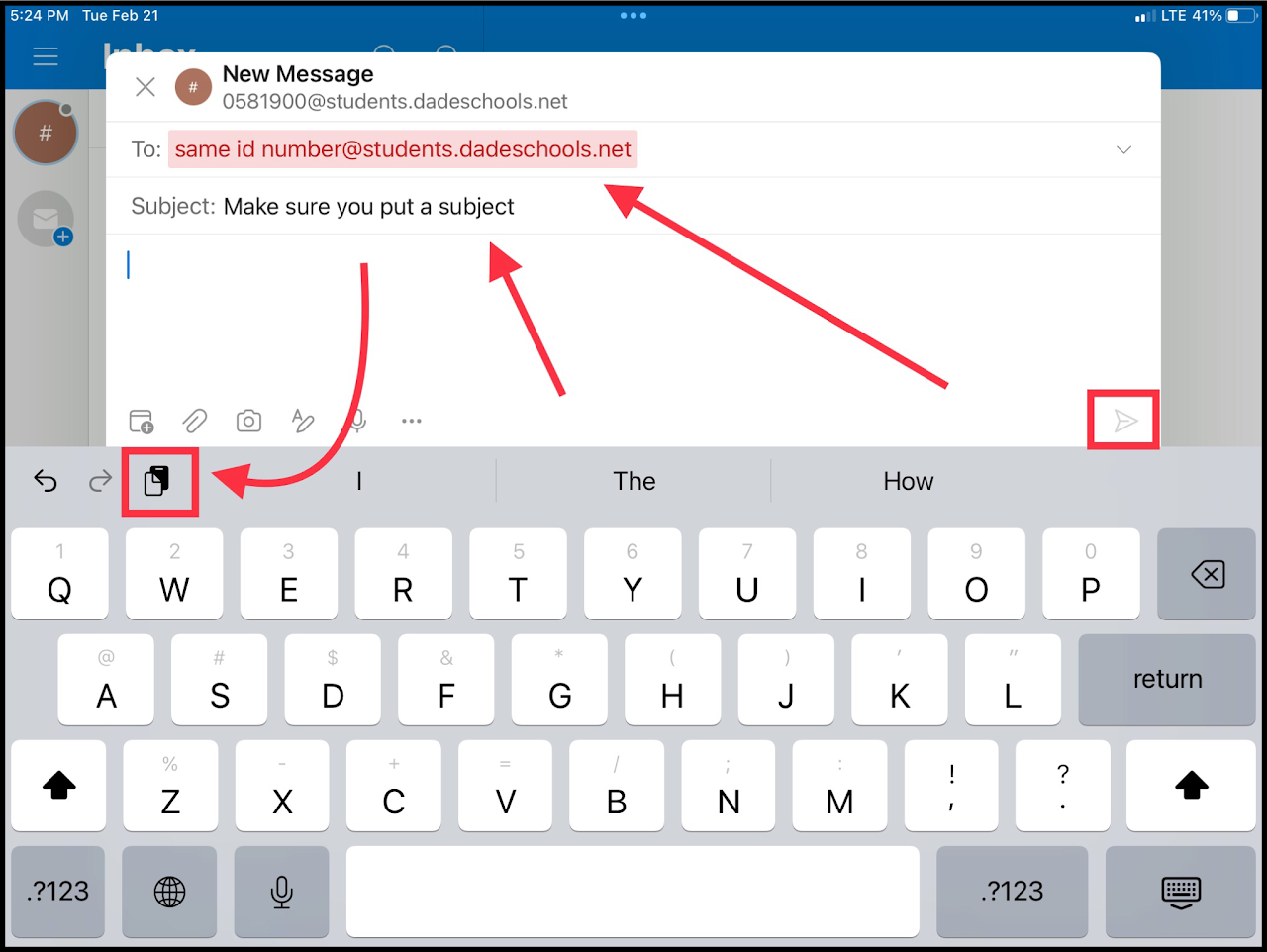
### Step 7 - Send Your Link Open outlook and write an email to your teacher that includes the link.The E-Mail **will not send** if there is no subject for the message.
You can copy and paste the link into the body of the E-Mail.
[](https://wiki.pwbstem.club/uploads/images/gallery/2024-01/tzpmedia.png)Difficulty - Easy
### Step 1 - Open "Document Settings" Select the name of your document in the top left of your screen. [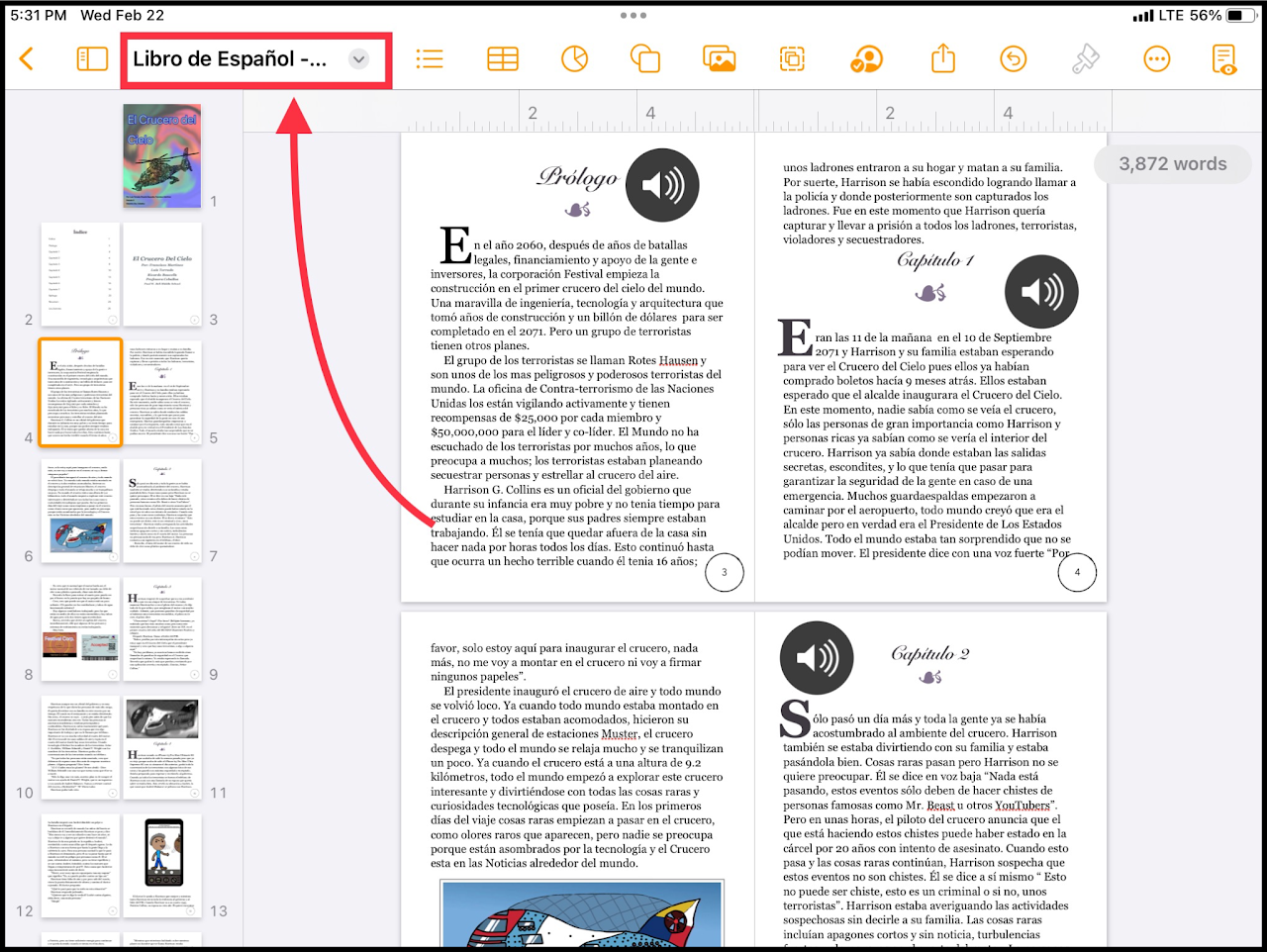](https://wiki.pwbstem.club/uploads/images/gallery/2024-01/change-size-step-1.png) ### Step 2 - Select "Document Setup" Under "Document Settings", select **Document Options** and then **Document** Setup. [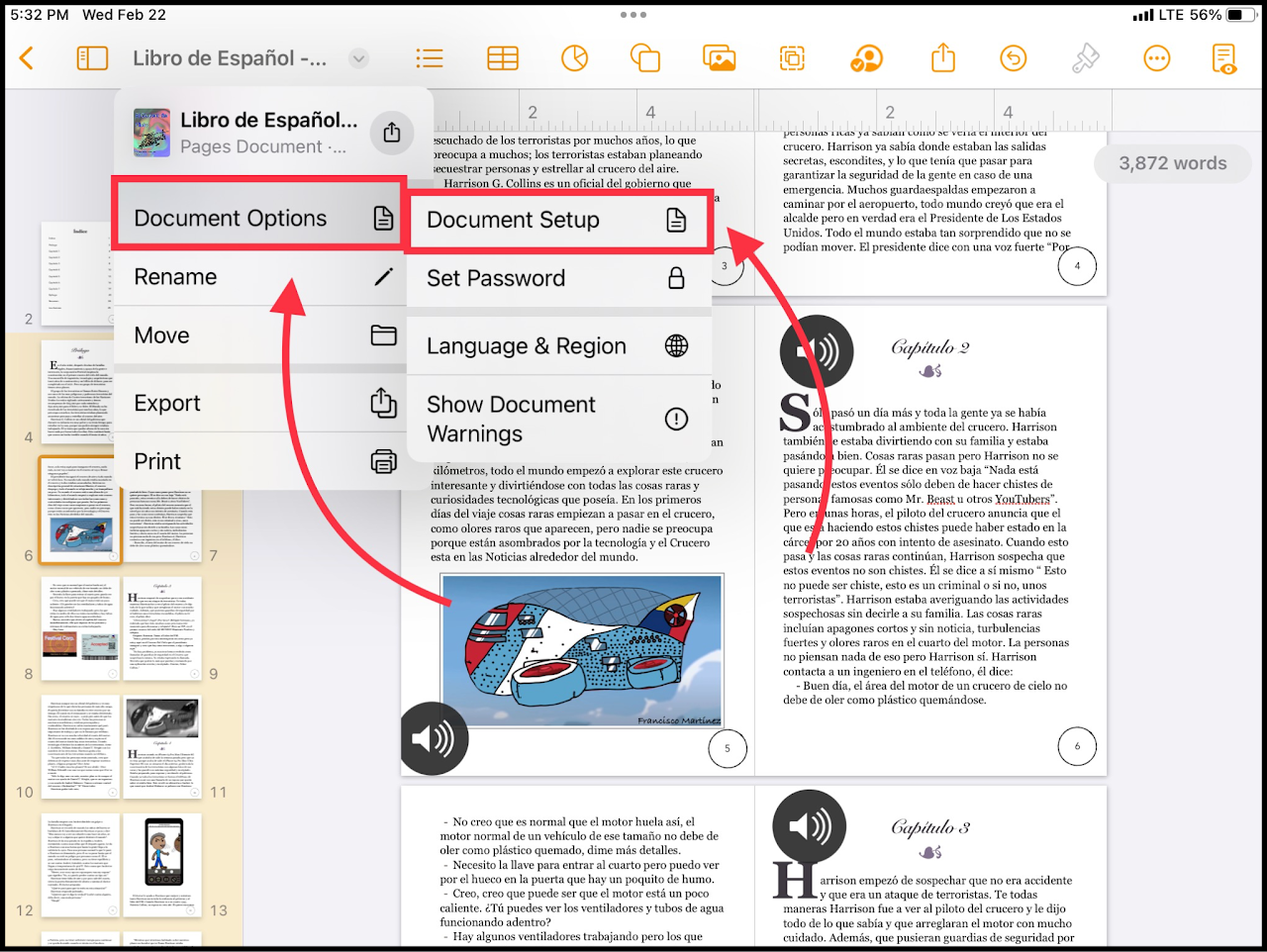](https://wiki.pwbstem.club/uploads/images/gallery/2024-01/change-size-step-2.png) ### Step 3 - Select Document Size Select the appropriate size for your document. [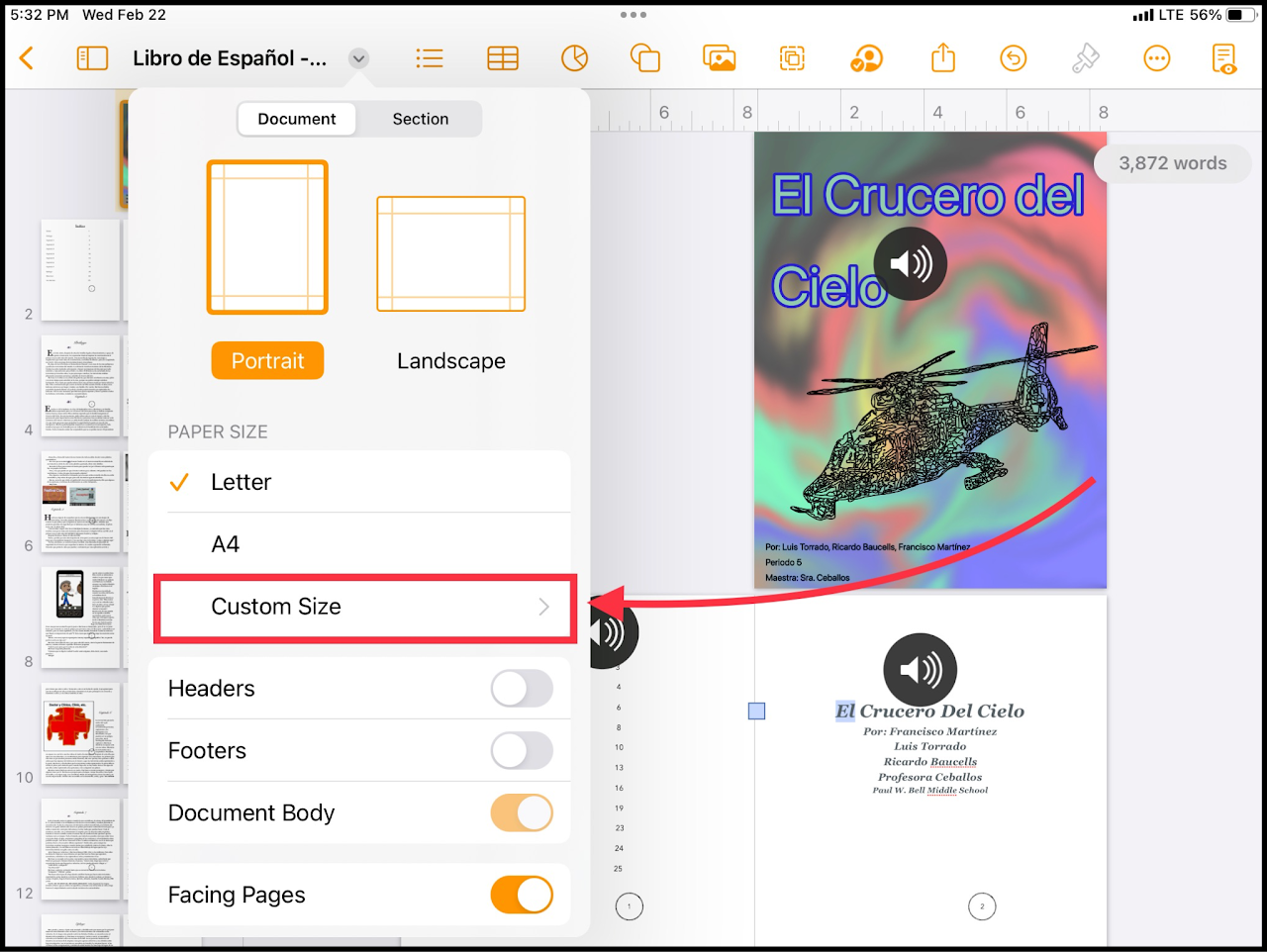](https://wiki.pwbstem.club/uploads/images/gallery/2024-01/0ihmedia.png)**If none apply to you, select Custom Size.**
### Step 4 - Input Custom Page Dimensions Input the size you would like the document to be. [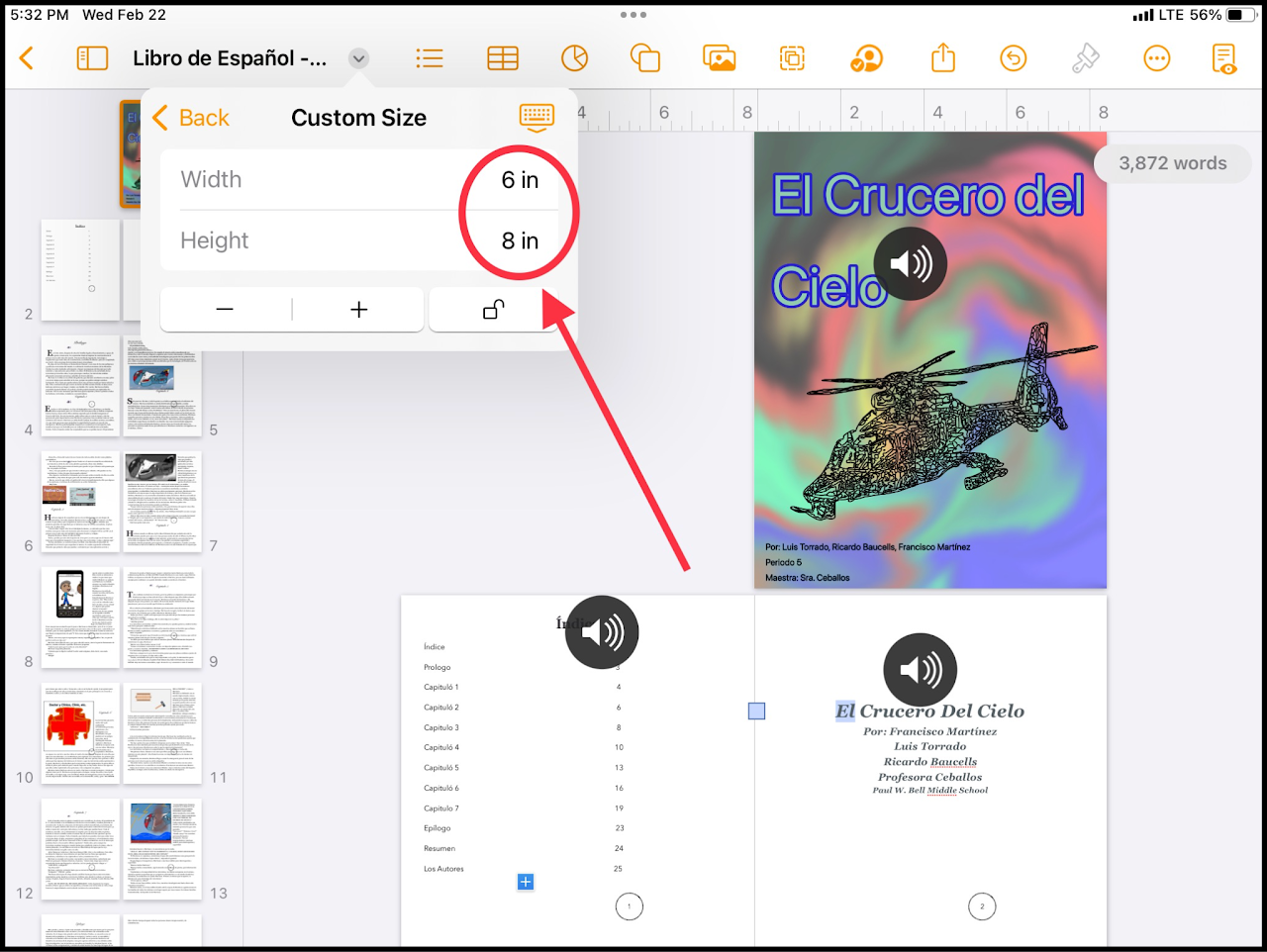](https://wiki.pwbstem.club/uploads/images/gallery/2024-01/media-1.png)If the second number changes right after you change the first one, the aspect ratio is **locked**. To bypass this, and change the numbers independently, select the lock to unlock it.
# How To Customize Your Document Background in PagesDifficulty - Easy
### Step 1 - Open Format Options Select the paintbrush icon in the top right of your screen.Make sure there are no items selected in the document to ensure that the correct menu shows.
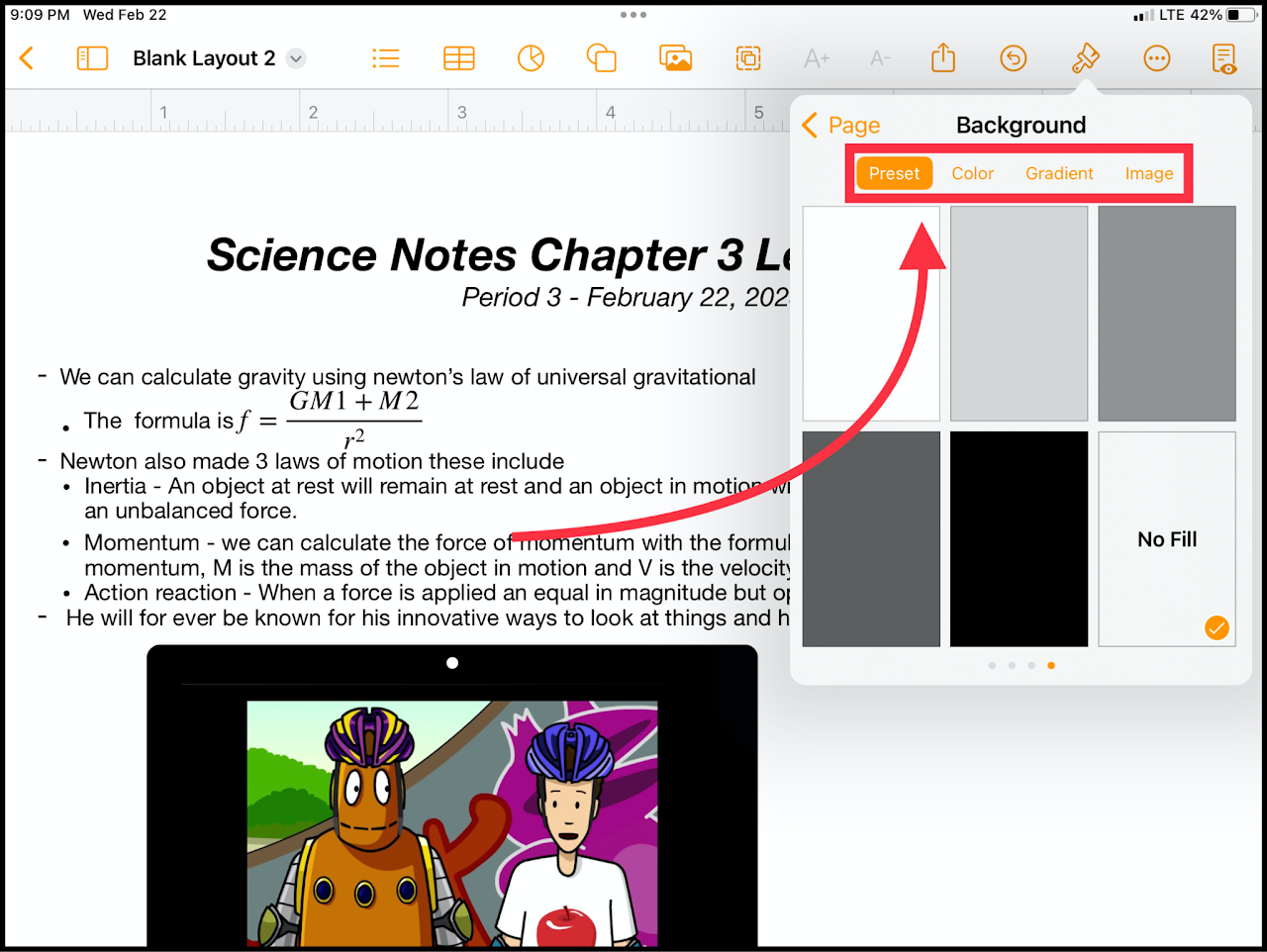
[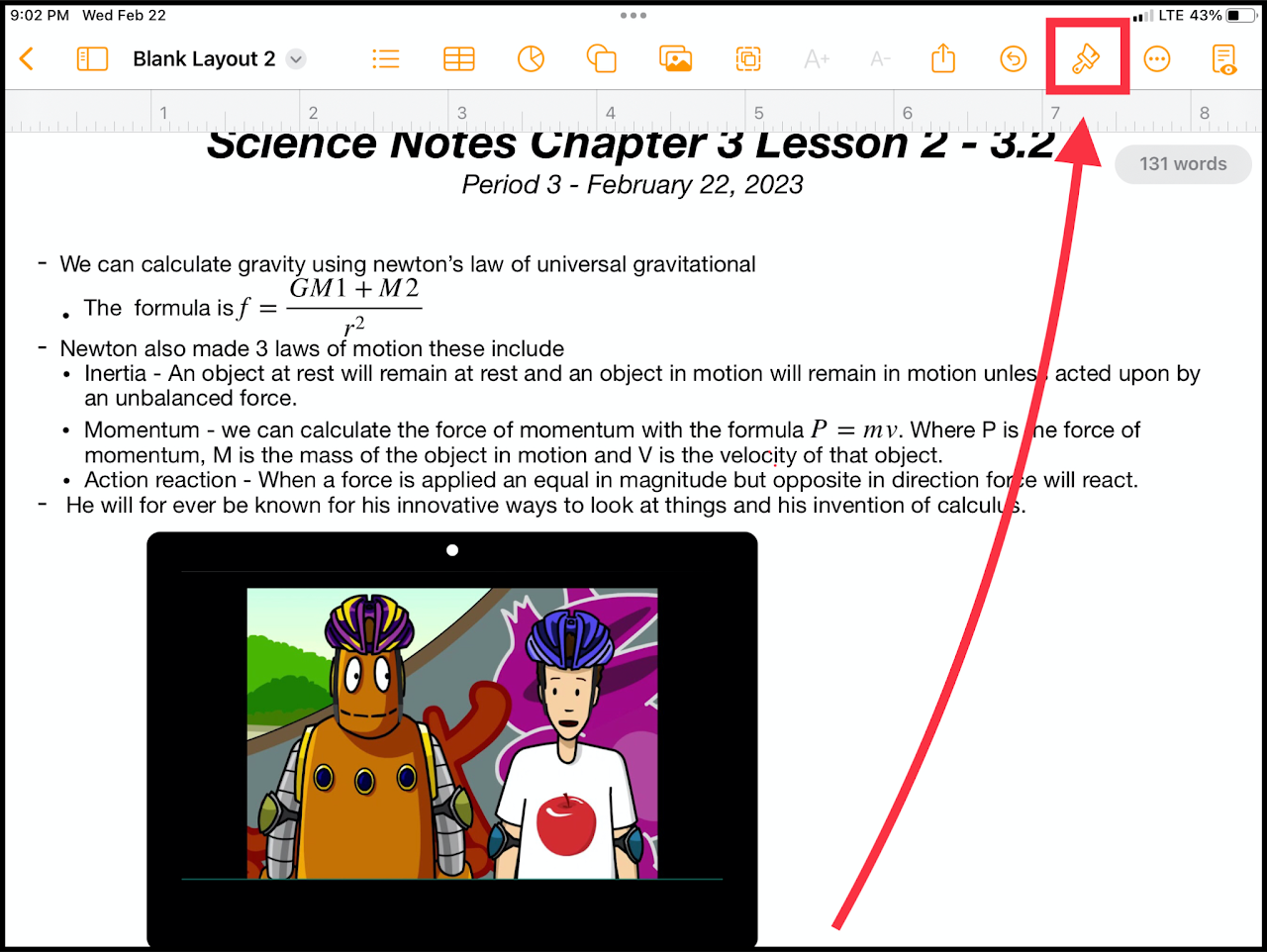](https://wiki.pwbstem.club/uploads/images/gallery/2024-01/change-backround-step-1.png) ### Step 2 - Select "Background After opening the format options, select the "Background" option. [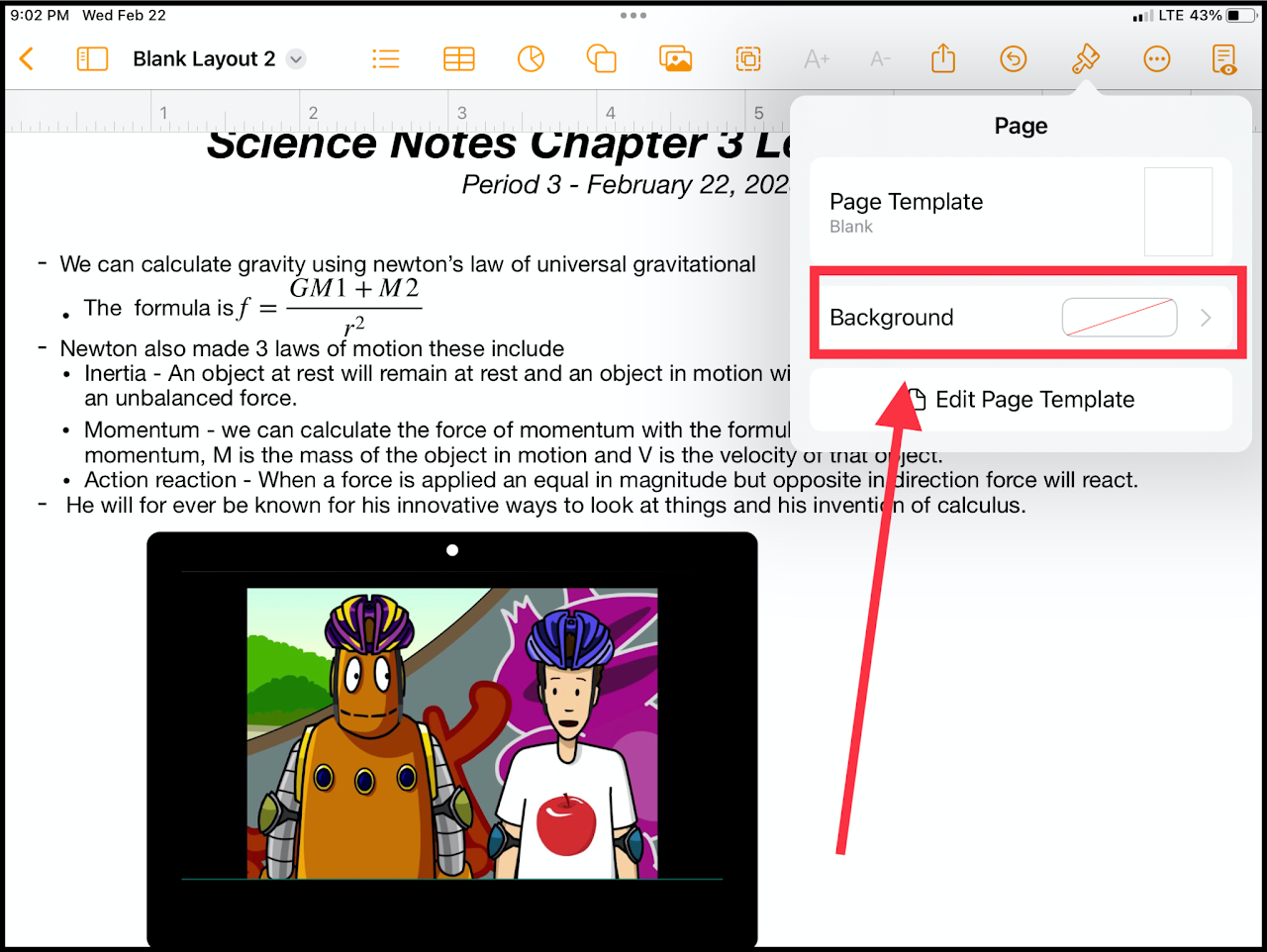](https://wiki.pwbstem.club/uploads/images/gallery/2024-01/change-backround-step-2.png) ### Step 3 - Change The Background The tabs at the top of the background menu allow further customization.Some of these options may make the text harder to read. Make sure to change the text color accordingly.
[](https://wiki.pwbstem.club/uploads/images/gallery/2024-01/change-backround-step-3.png) # How To Embed Web Videos in PagesDifficulty - Easy
### Step 1 - Navigate To The Media Menu Tap on the **media icon** (Stack of Pictures) on the top of your screen. [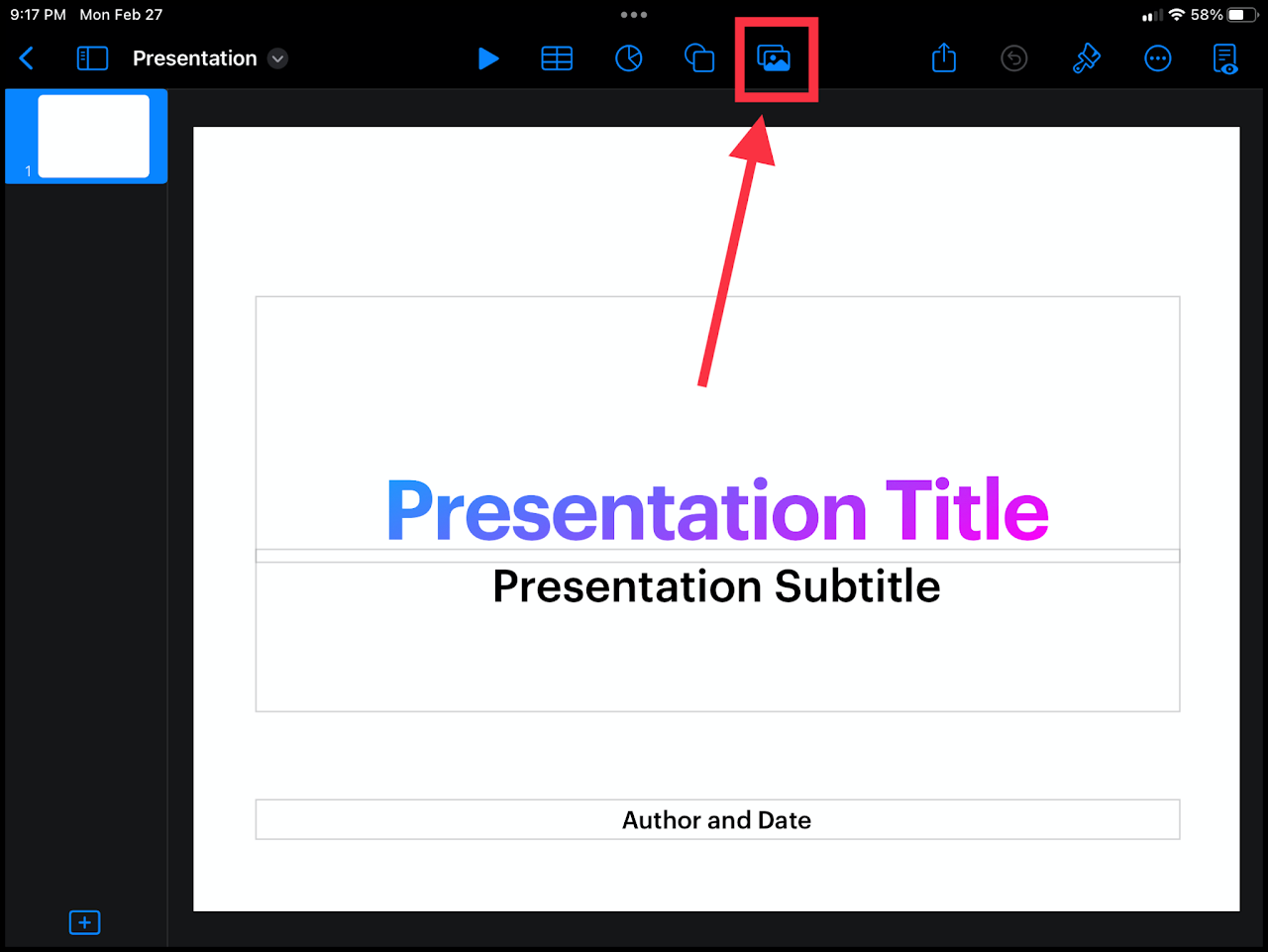](https://wiki.pwbstem.club/uploads/images/gallery/2024-01/embed-web-video-keynote-step-1.png) ### Step 2 - Add Web Video Select "Web Video" option within the media menu. [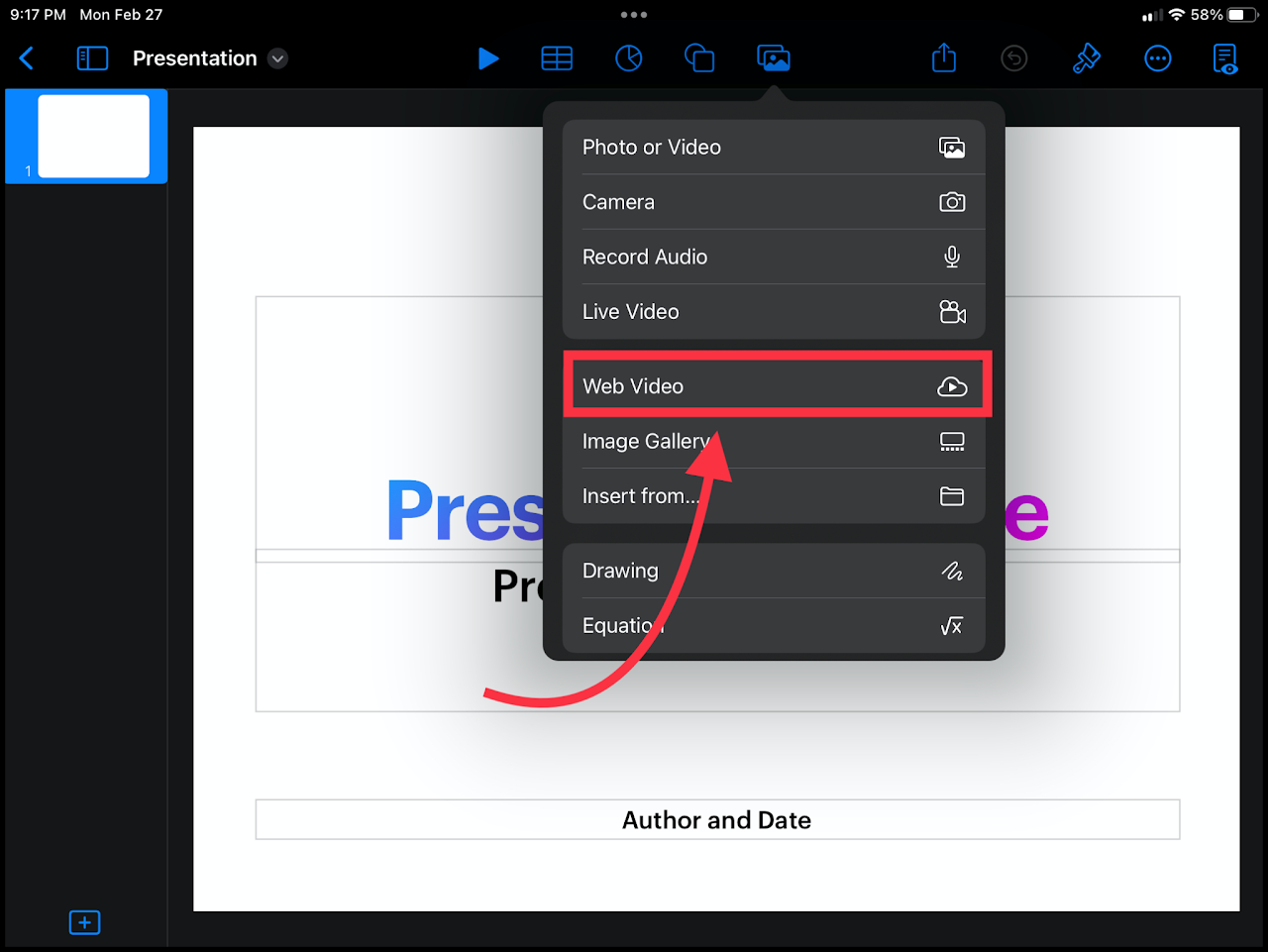](https://wiki.pwbstem.club/uploads/images/gallery/2024-01/embed-web-video-keynote-step-2.png) ### Step 3 - Insert Video Paste the link of the video you'd like to insert in the "Enter URL" box. [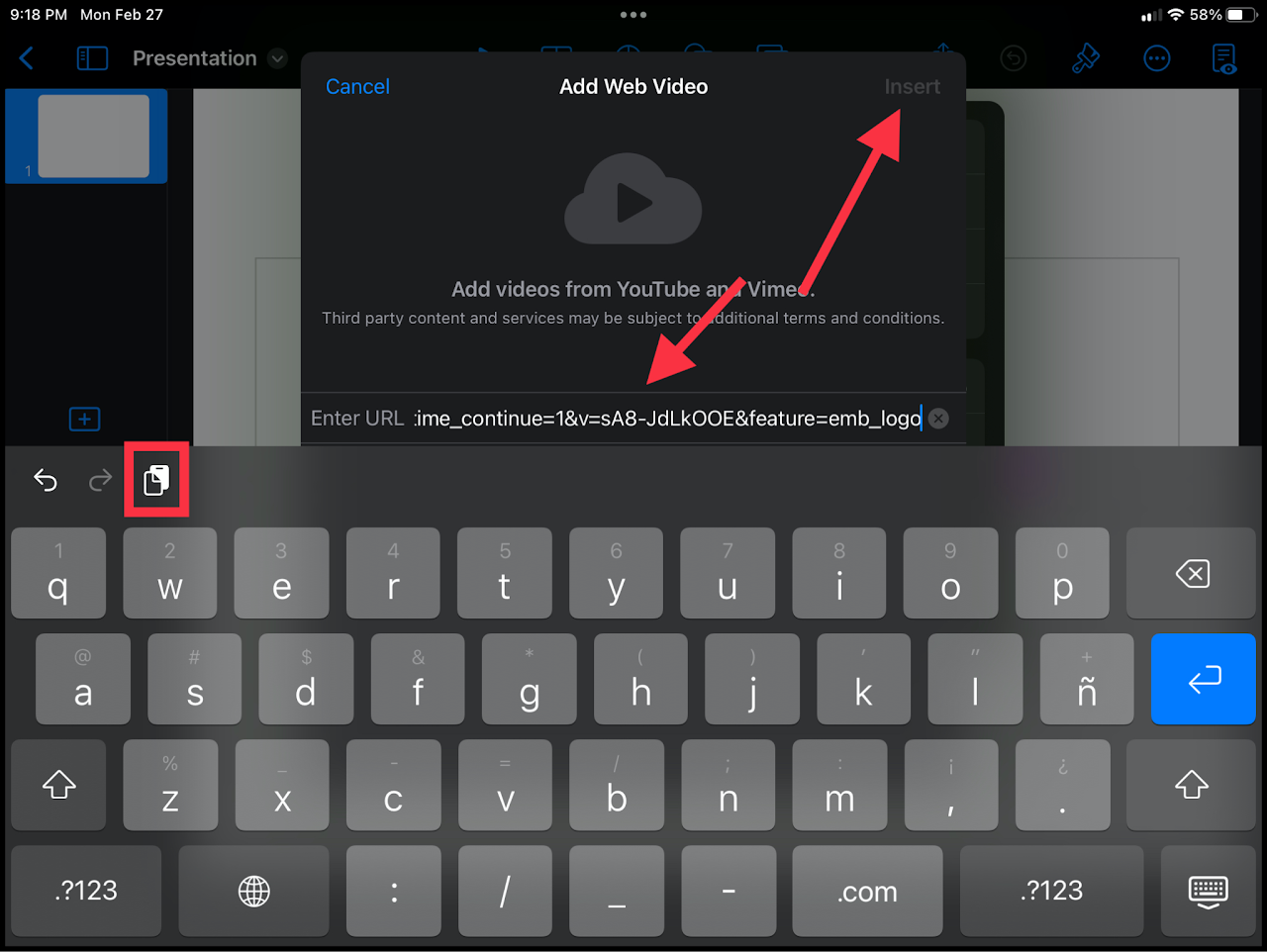](https://wiki.pwbstem.club/uploads/images/gallery/2024-01/embed-web-video-keynote-step-3.png) ### Optional - Add Some Flair To The Document You can add some flair to your document by adding icons, such as a computer icon from the objects menu (located to the left of the media menu). You can also add some speakers or even an antenna. [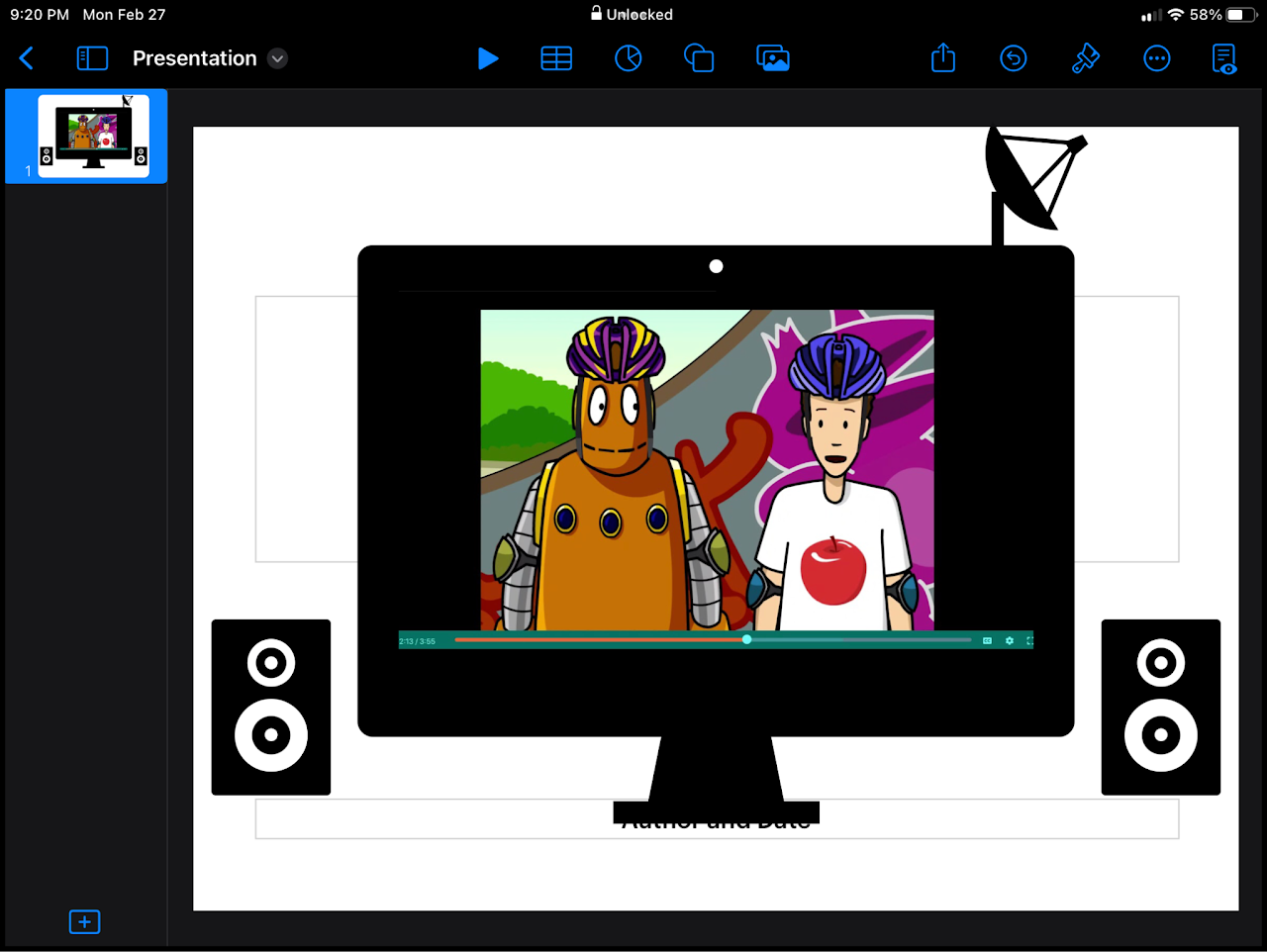](https://wiki.pwbstem.club/uploads/images/gallery/2024-01/media.png) # How To Create a Table of Contents in PagesDifficulty - Medium
### Step 1 - Open text format options Highlight the text you would like to use as a heading in your table of contents, then tap the paintbrush in the top right. ### Step 2 - Navigate to Paragraph Styles Enter the "Paragraph Styles" menu. [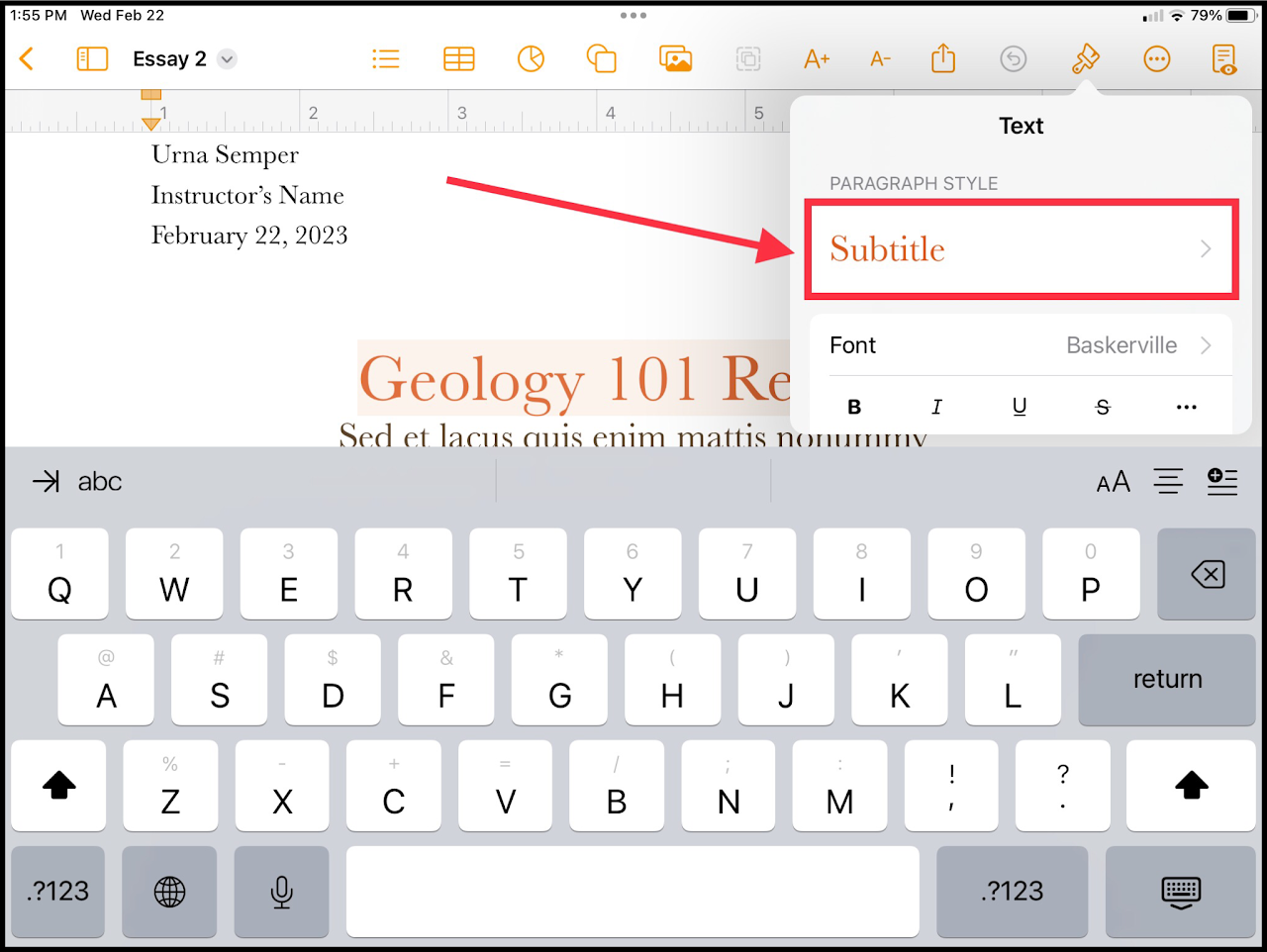](https://wiki.pwbstem.club/uploads/images/gallery/2024-01/PXZmedia.png) ### Step 3 - Change the Paragraph Style Select a paragraph style that matches what you would like to inputted in the table of contents.If writing an essay, use the "Subtitle" style.
### Step 4 - Navigate to the Table of Contents Select the table of contents menu on the top of your screen.The table of contents menu looks like a list.
If all entries are shown, you're done! If they are missing, open the drop-down menu below.
Difficulty - Medium
Creating different levels of headings (indentations) can allow easier navigation of your document in Pages. #### **The end-result**: [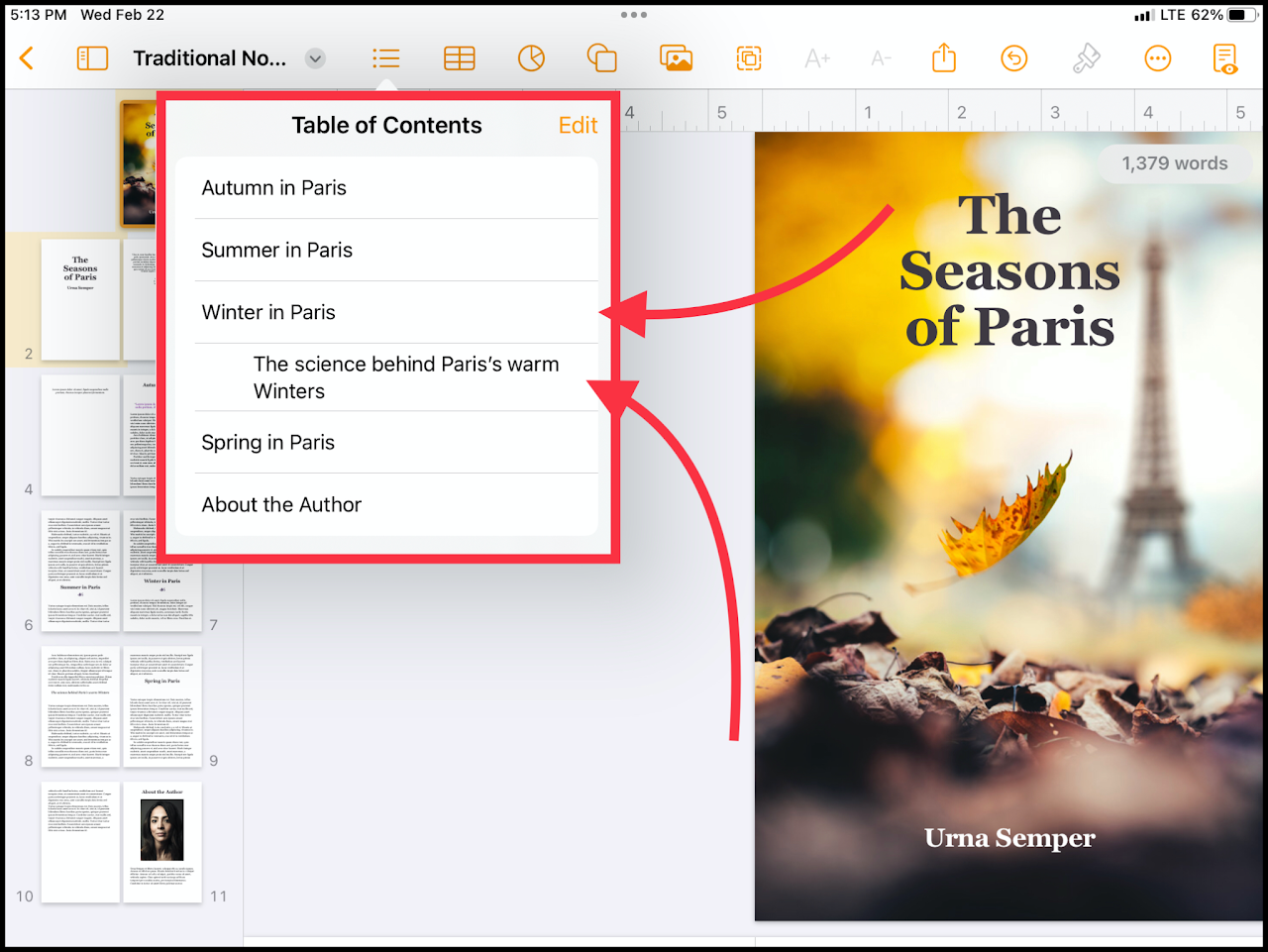](https://wiki.pwbstem.club/uploads/images/gallery/2024-01/sP0media.png) ### Step 1 - Highlight The Text Select the text that will be used as the heading in the table of contents.To prevent confusion, change the text to something unique to only headings.
Sub-categories should be smaller than normal titles, but larger than standard text.
### Step 3 - Add The Paragraph Style as a Heading Select the table of contents icon and press "Edit". Tap the circle next to your font to enable the font as a heading. ### Step 5 - Change the Indentation Select the indent icon to the right of the new enabled style.Tap once for medium indentation, or twice for high indentation.
# How To Export a Document in PagesDifficulty - Medium
### Step 1 - Open "Document Options Select the title of your document in the top left to reveal a drop down menu. [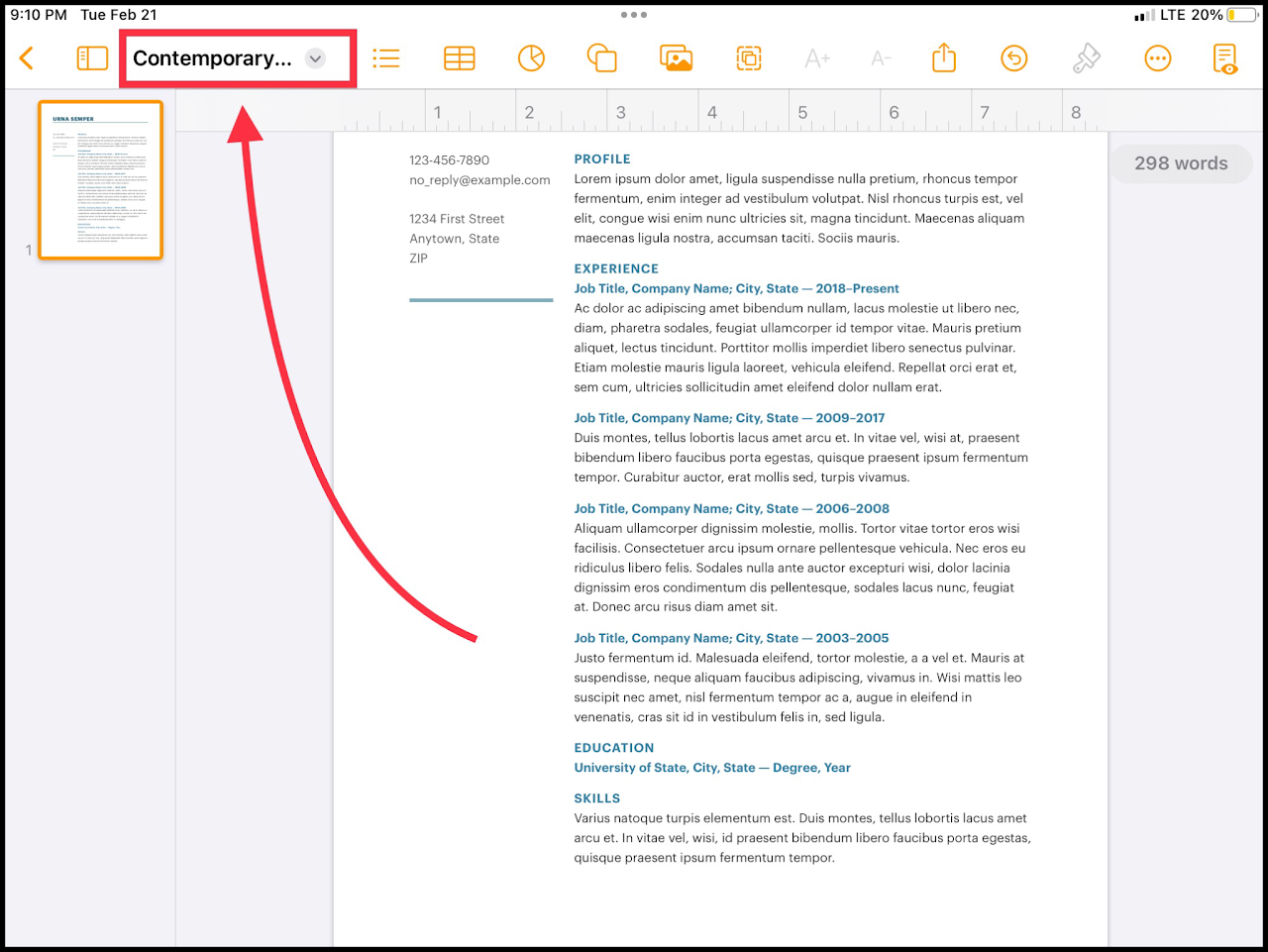](https://wiki.pwbstem.club/uploads/images/gallery/2024-01/5uvmedia.png) ### Step 2 - Select "Export" Select the "Export" option in the document options menu.Exporting as a PDF is recommended if your document contains many images or text boxes.
If requested specifically by your teacher, you may export as a word document, as long as you make sure the export was successful.
EPUB files are for exporting as an online book.
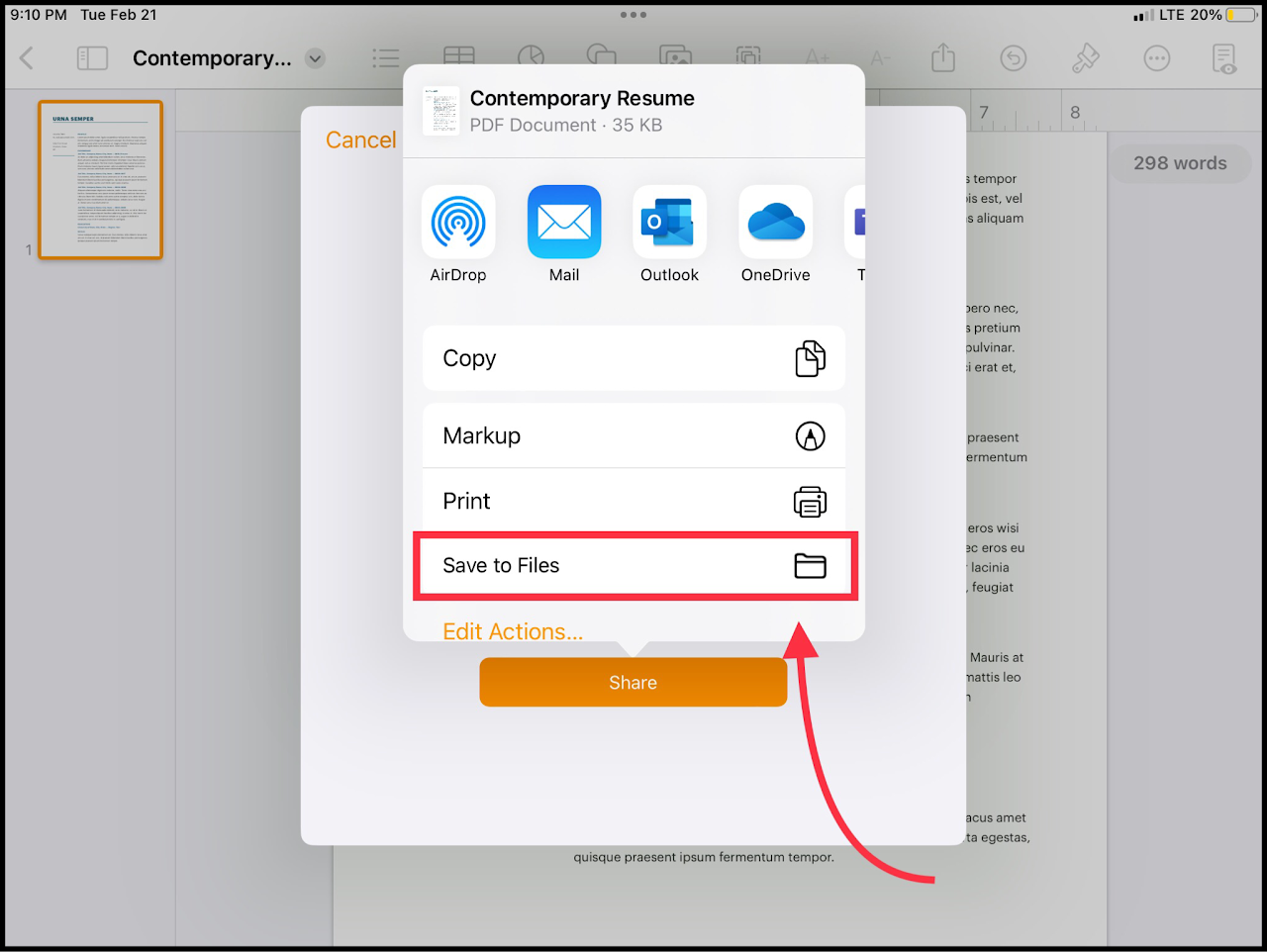
### Step 4 - Save the File Select the "Save to Files" option to save to the iPad.If you reset your iPad, this file will be LOST. Select OneDrive or iCloud as an alternative.
[](https://wiki.pwbstem.club/uploads/images/gallery/2024-01/fMbmedia.png) # How to Search for Specific Words in PagesDifficulty - Easy
### Step 1 - Open the "Extras" Menu Select the three dots in the top left corner of your screen. [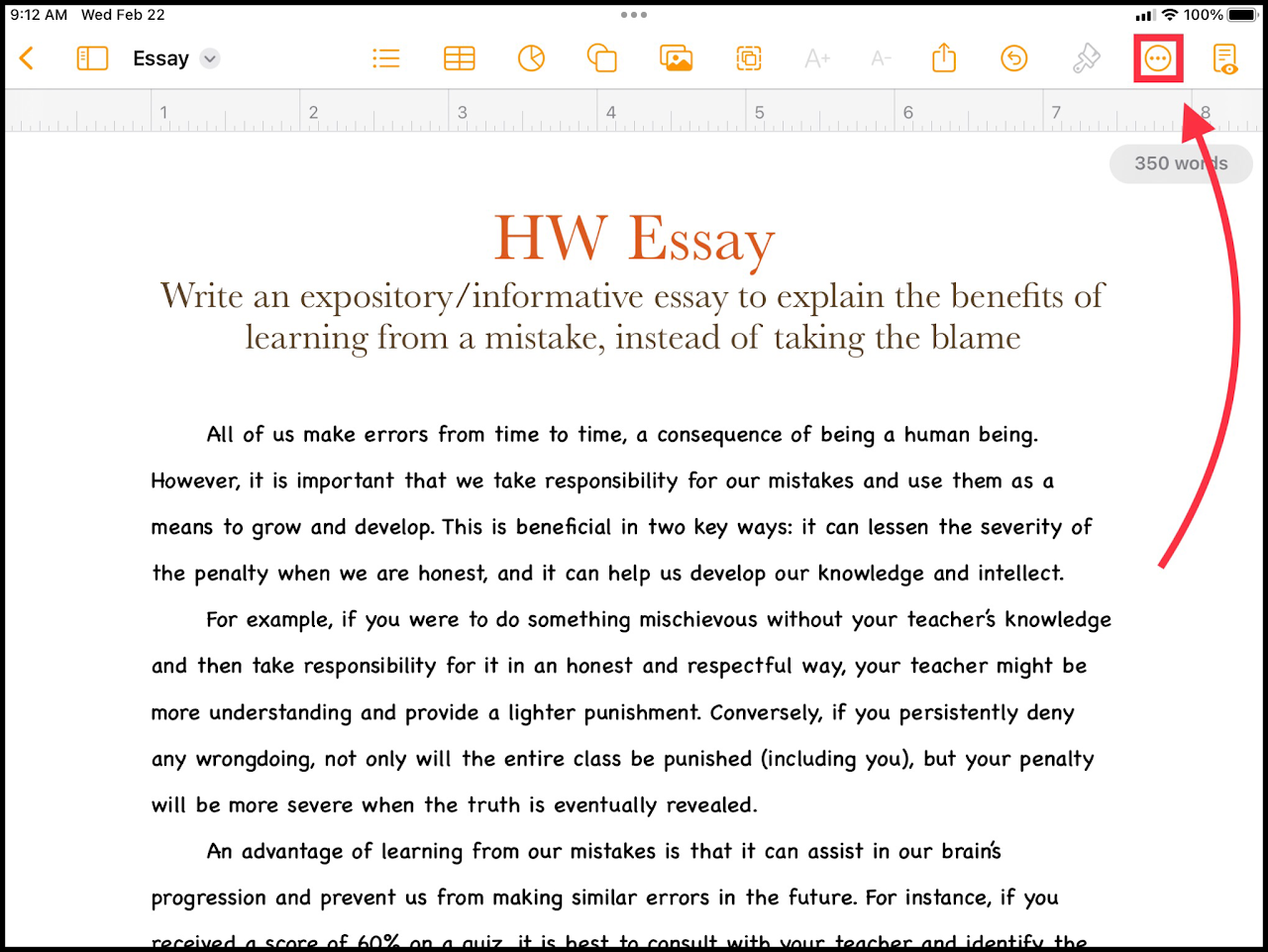](https://wiki.pwbstem.club/uploads/images/gallery/2024-01/p9Gmedia.png) ### Step 2 - Select "Find" In the "Extras" menu, select the option titled "Find". [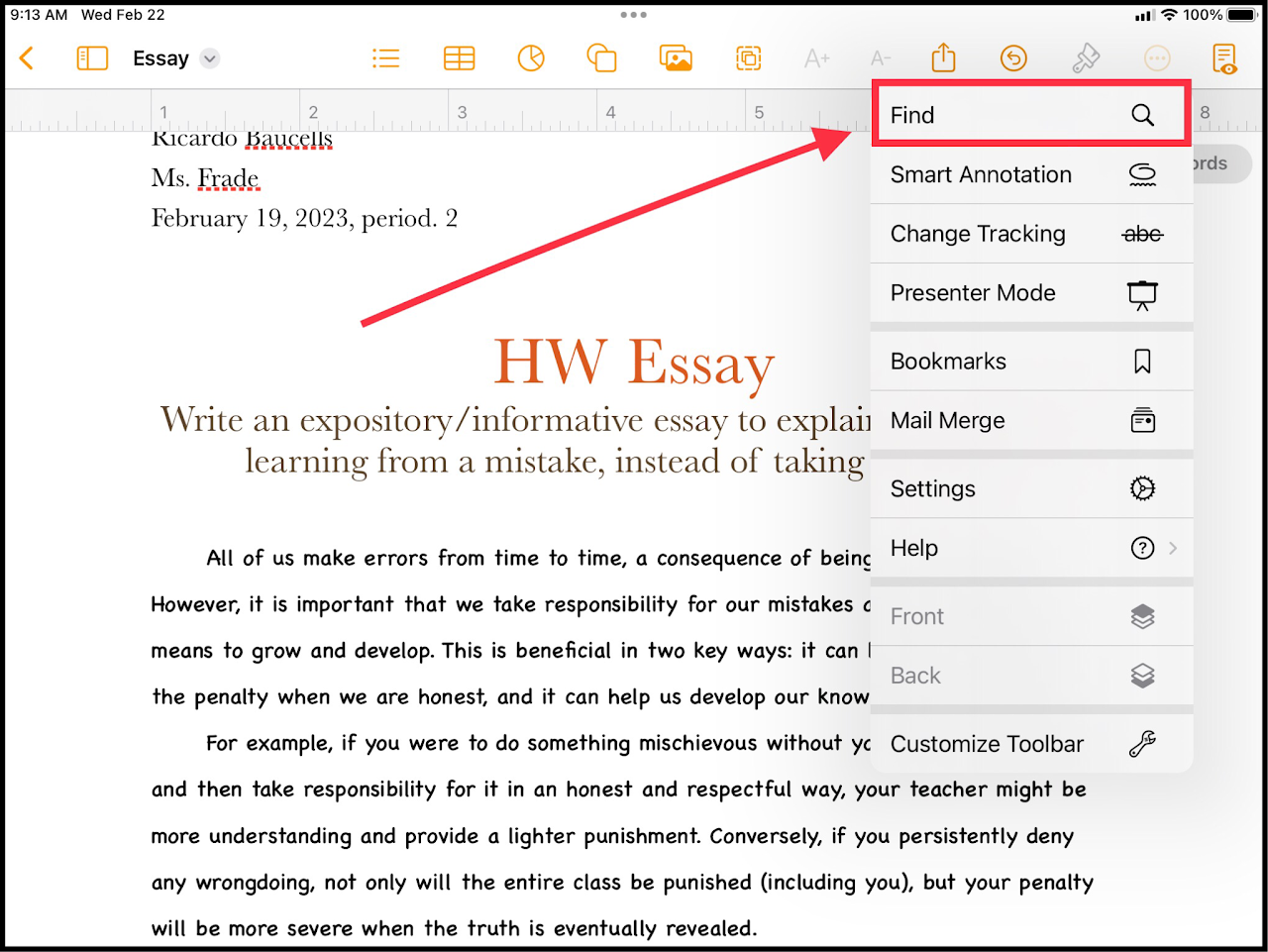](https://wiki.pwbstem.club/uploads/images/gallery/2024-01/37umedia-1.png) ### Step 3 - Find! Type in the word or characters you would like to search for. The matching items will be highlighted. [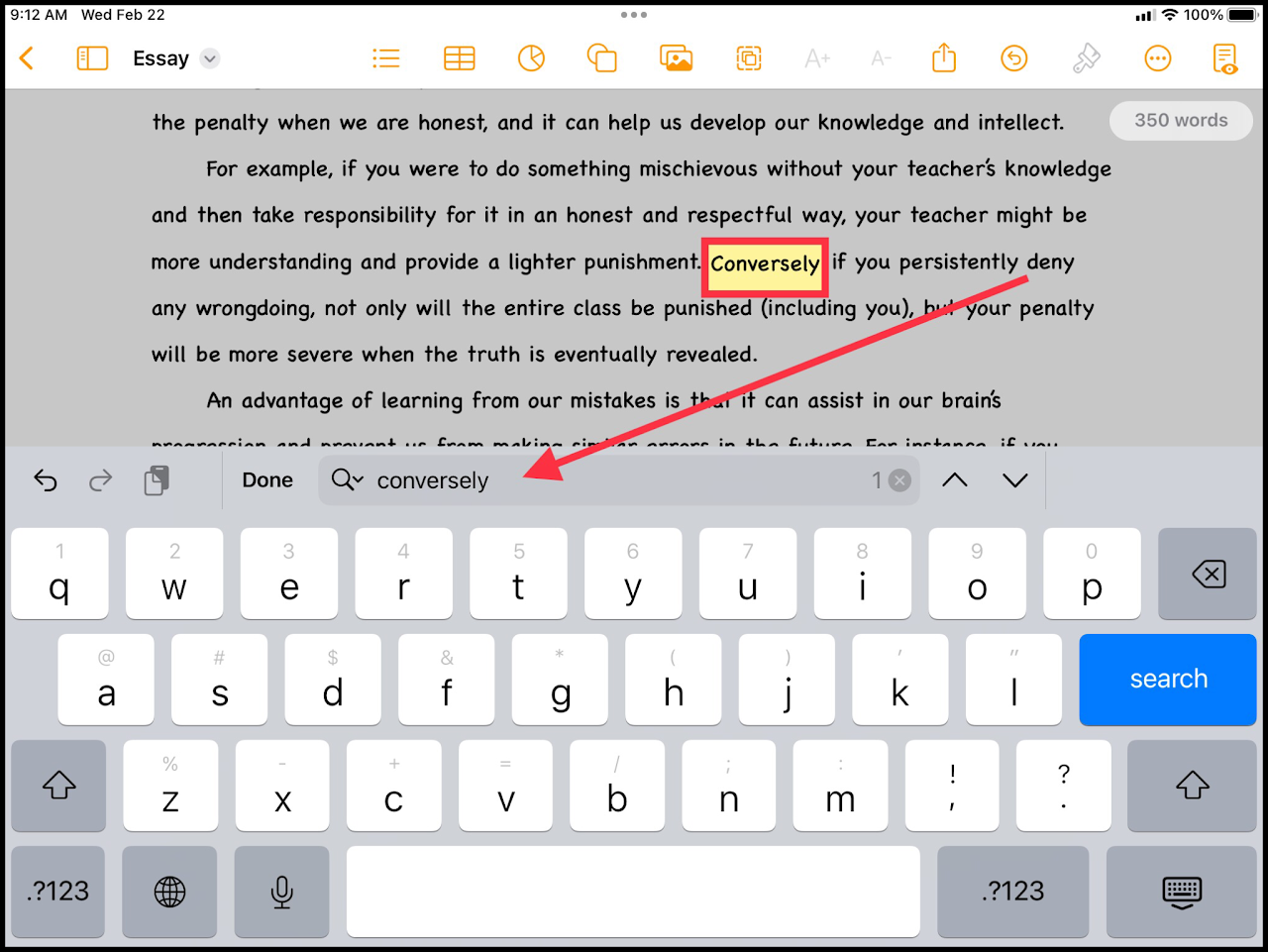](https://wiki.pwbstem.club/uploads/images/gallery/2024-01/R9Pmedia.png)This feature is AWESOME for finding repeated, boring, or unnecessary words.
# How To Customize Your Toolbar in PagesDifficulty - Medium
### Step 1 - Navigate To The Extras Menu In the top right of the screen, select the 3 dots. [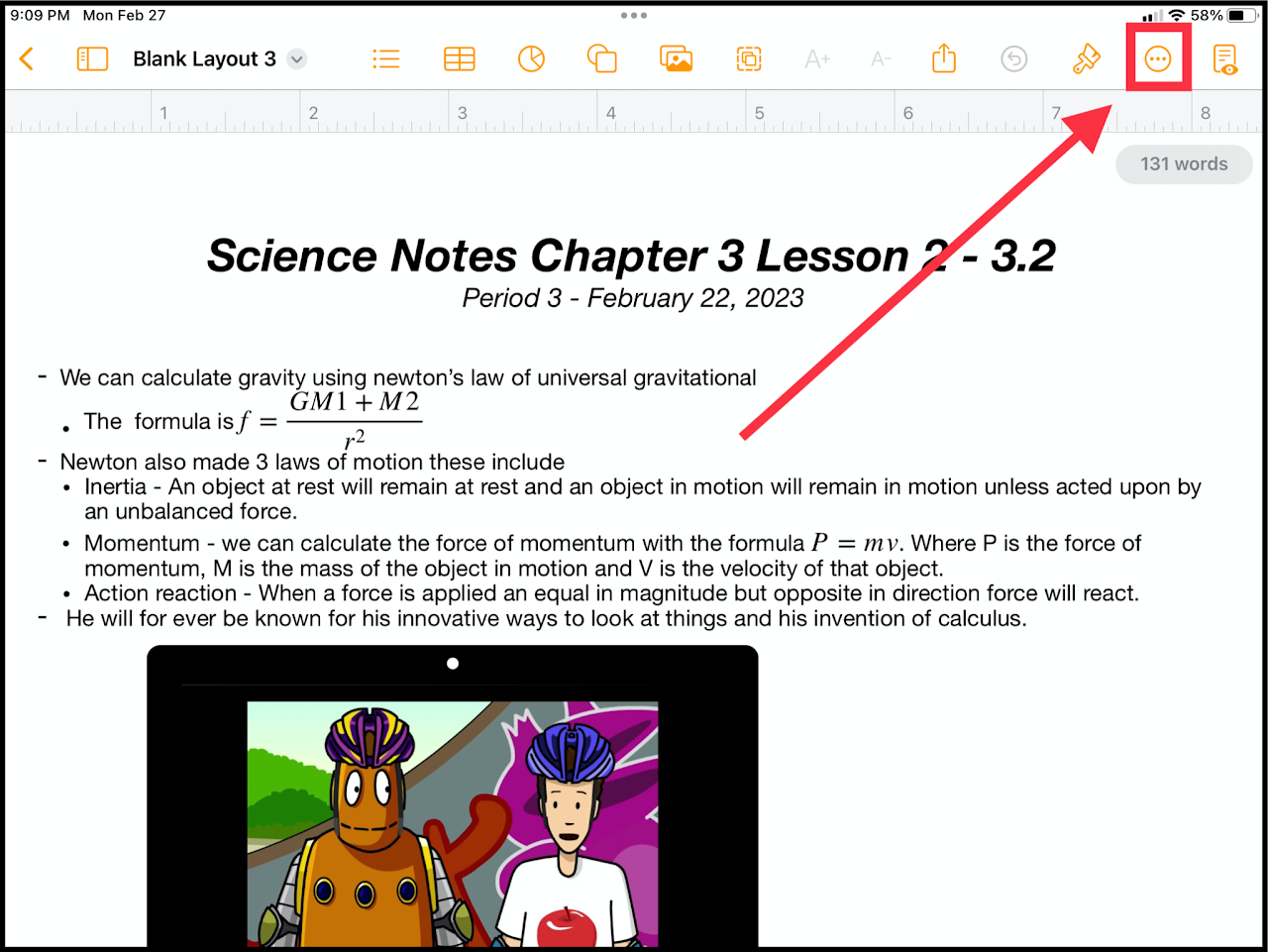](https://wiki.pwbstem.club/uploads/images/gallery/2024-01/customize-toolbar-pages-step-1.png) ### Step 2 - Select "Customize Toolbar" After opening the extras menu, select the "Customize Toolbar" option. [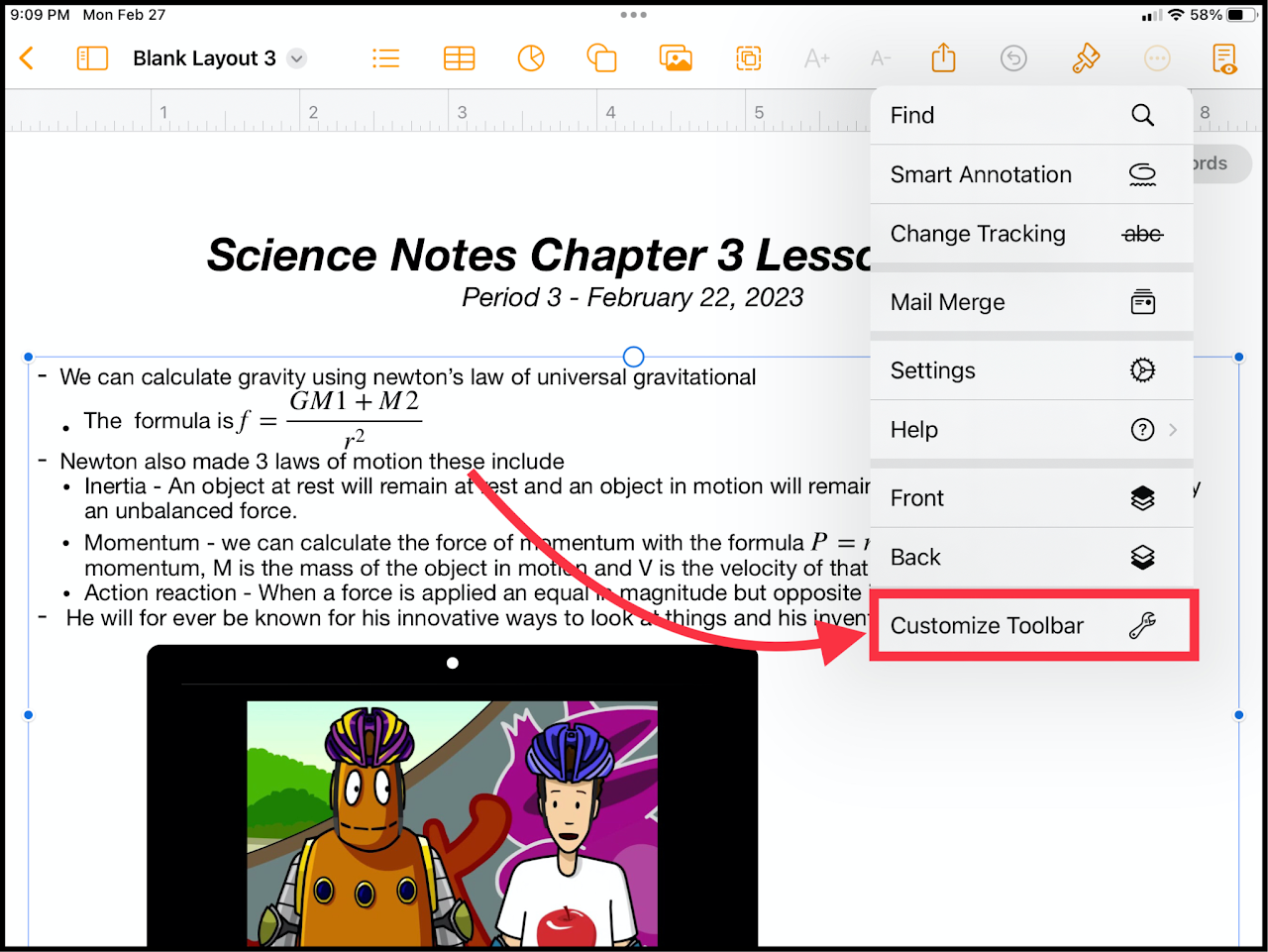](https://wiki.pwbstem.club/uploads/images/gallery/2024-01/customize-toolbar-pages-step-2.png) ### Step 3 - Start Customizing You can drag and drop the different icons shown on your screen to the top toolbar. You can remove items by doing the opposite. [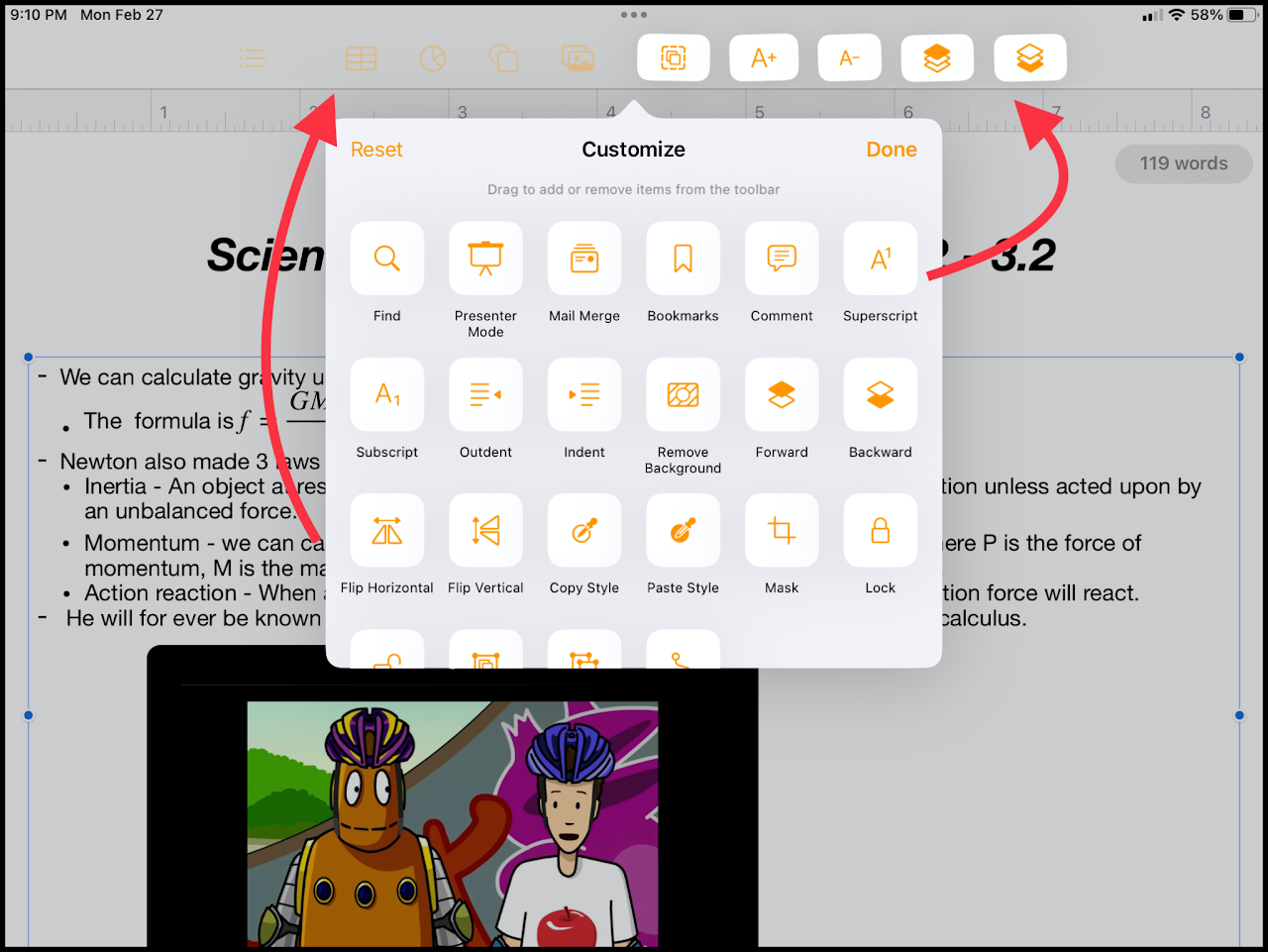](https://wiki.pwbstem.club/uploads/images/gallery/2024-01/8Ypcustomize-toolbar-pages-step-3.png)