Difficulty - Easy
### Step 1 - Open "Document Settings" Select the name of your document in the top left of your screen. [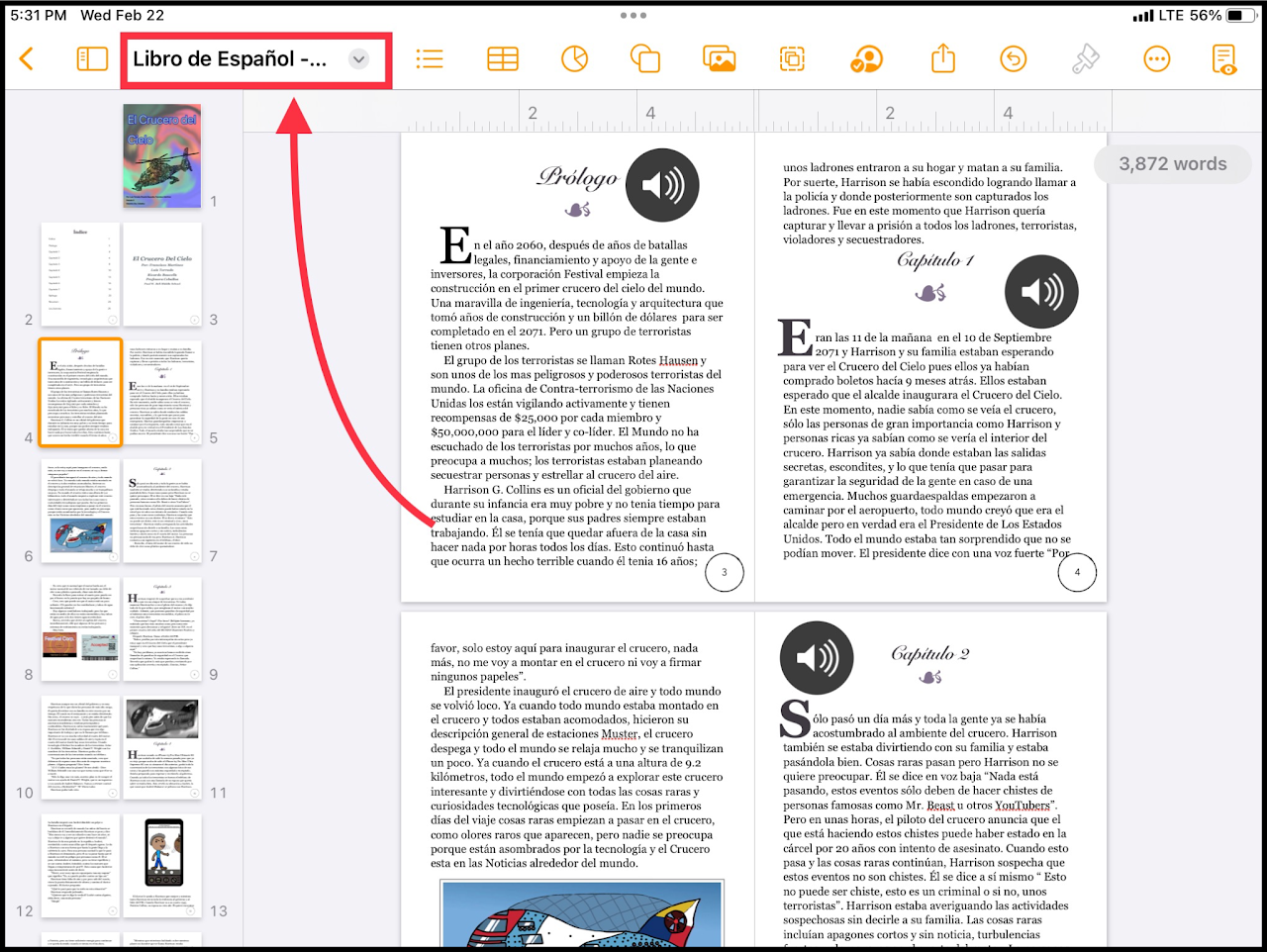](https://wiki.pwbstem.club/uploads/images/gallery/2024-01/change-size-step-1.png) ### Step 2 - Select "Document Setup" Under "Document Settings", select **Document Options** and then **Document** Setup. [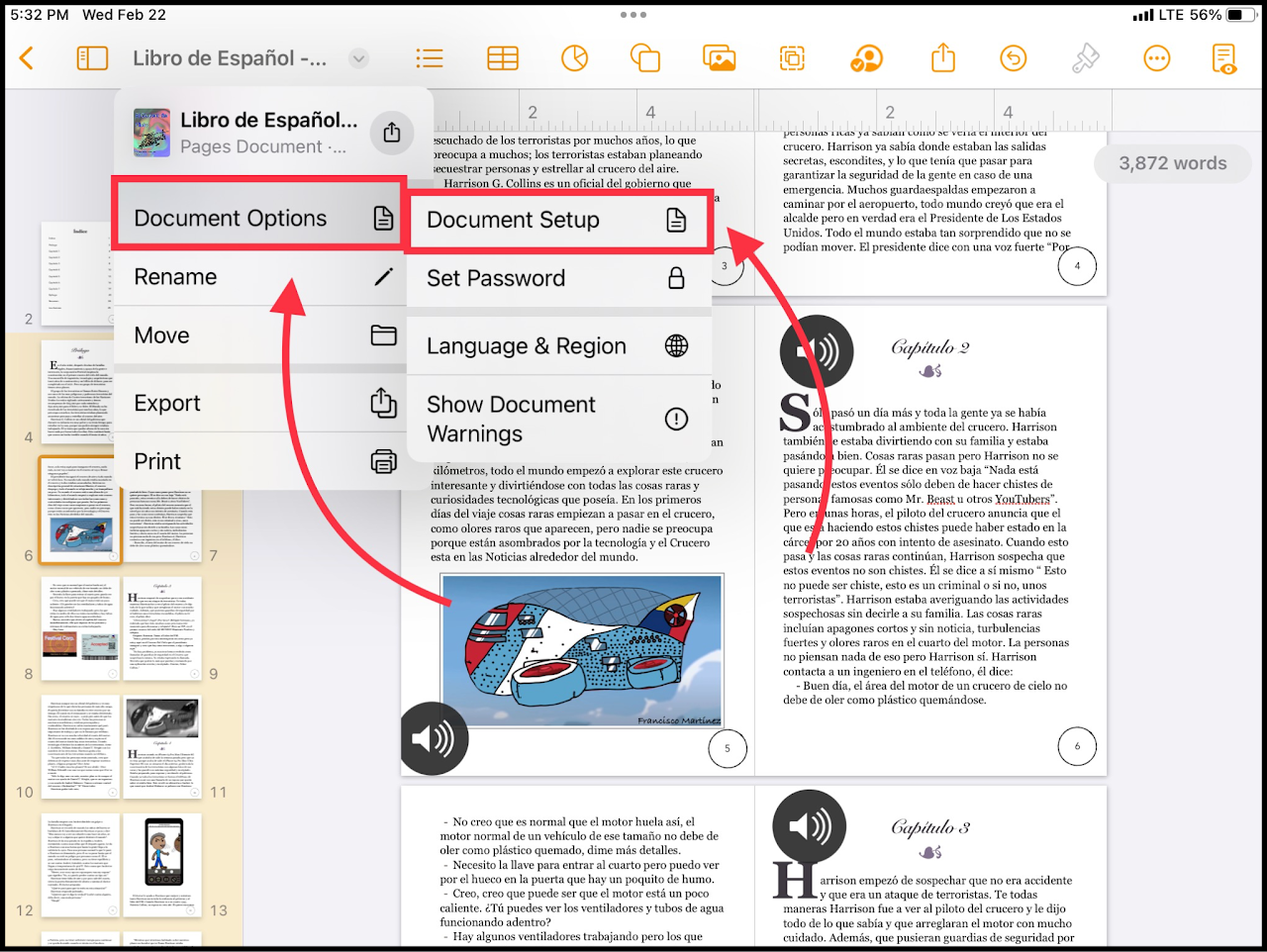](https://wiki.pwbstem.club/uploads/images/gallery/2024-01/change-size-step-2.png) ### Step 3 - Select Document Size Select the appropriate size for your document. [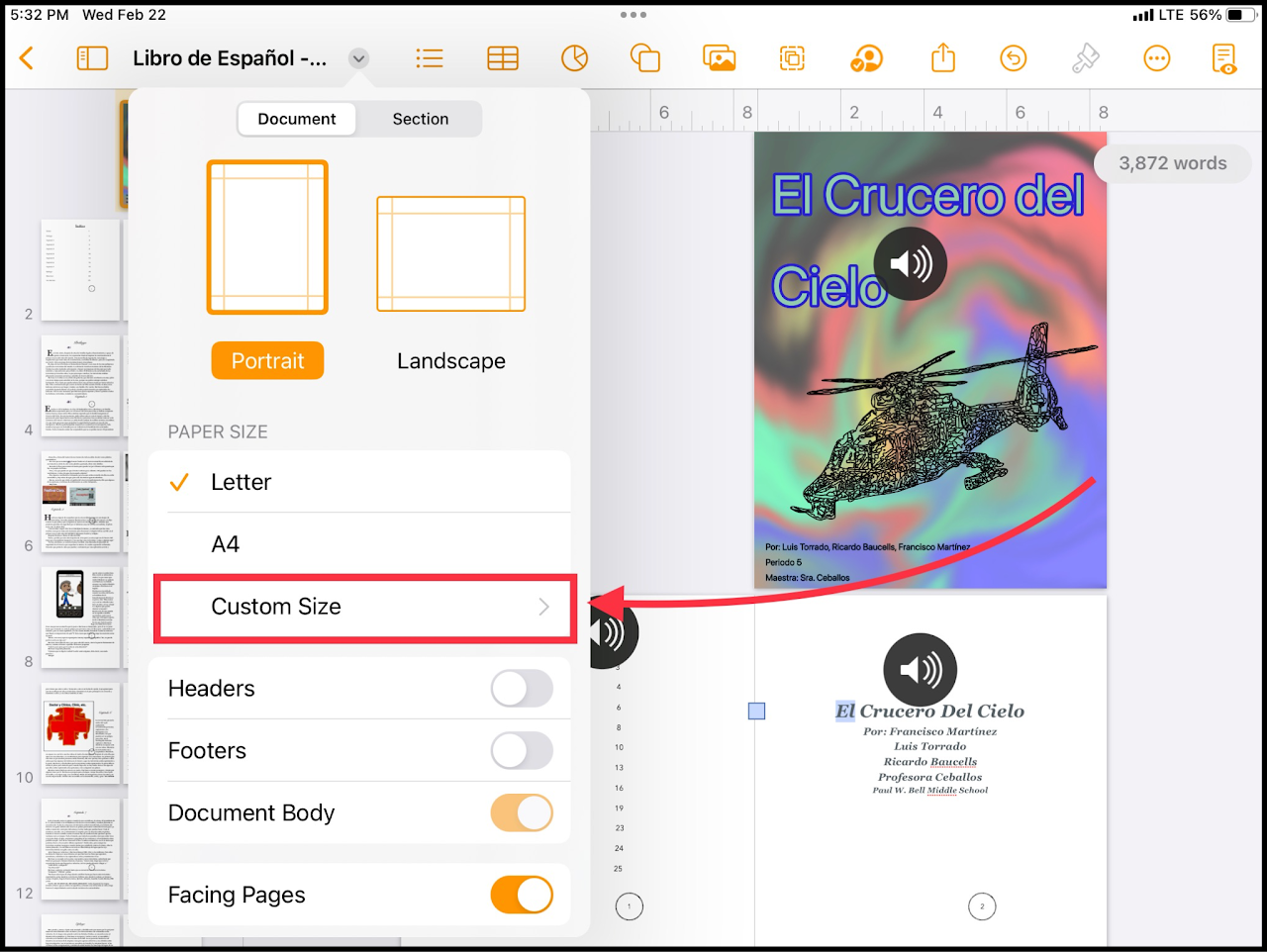](https://wiki.pwbstem.club/uploads/images/gallery/2024-01/0ihmedia.png)**If none apply to you, select Custom Size.**
### Step 4 - Input Custom Page Dimensions Input the size you would like the document to be. [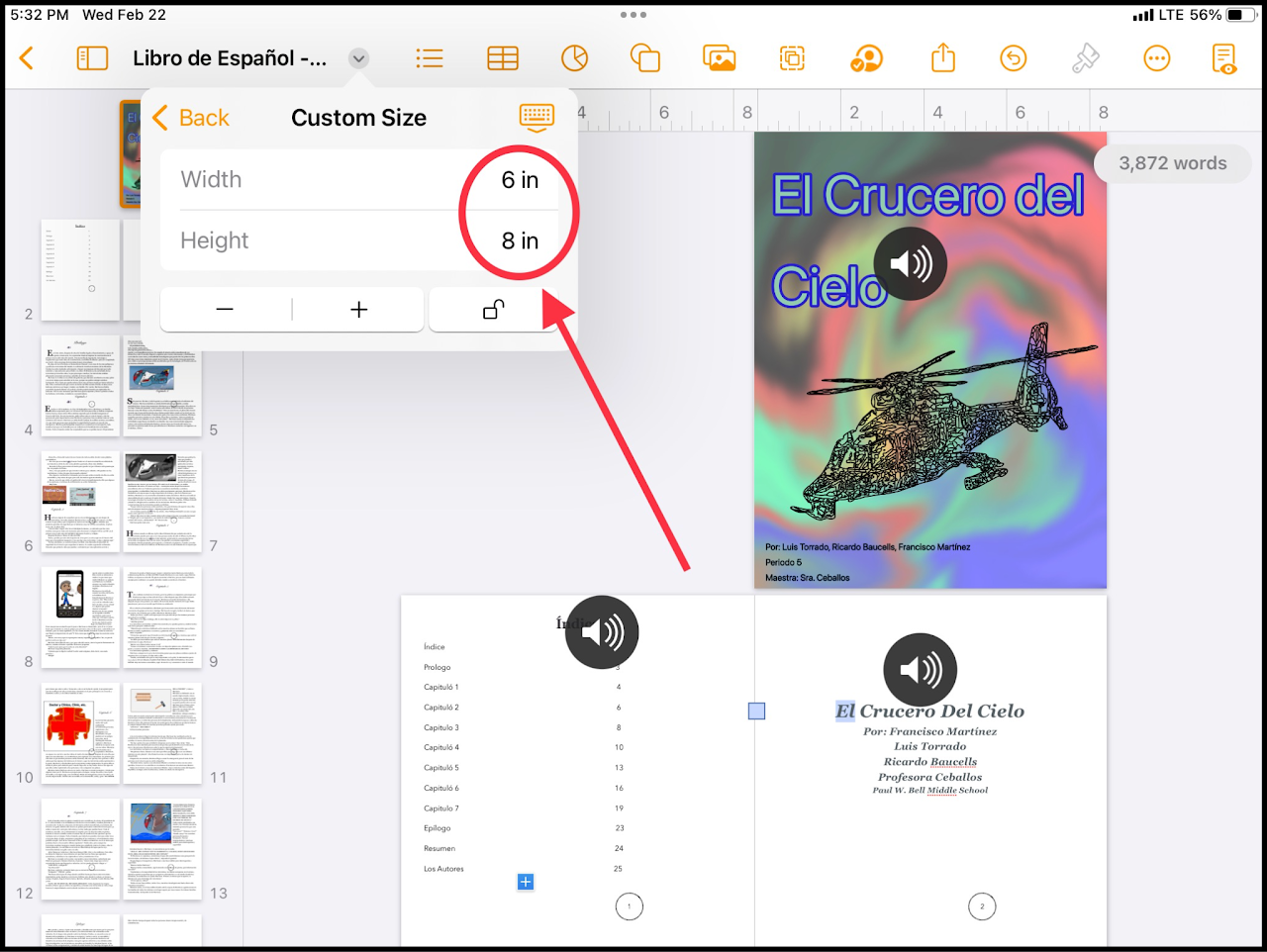](https://wiki.pwbstem.club/uploads/images/gallery/2024-01/media-1.png)If the second number changes right after you change the first one, the aspect ratio is **locked**. To bypass this, and change the numbers independently, select the lock to unlock it.