Difficulty - Easy
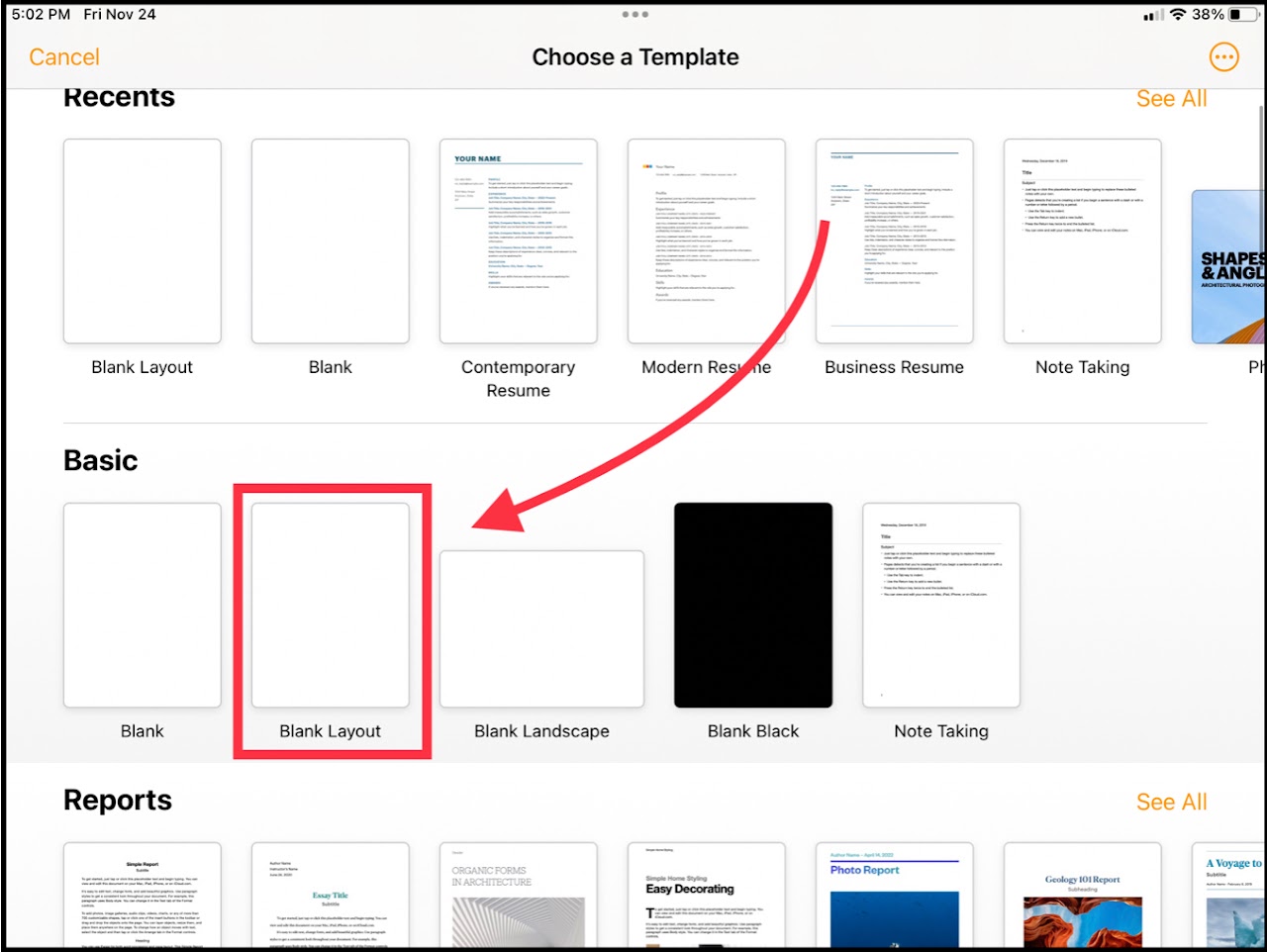
### Step 1 - Open Pages, Create Document Open up the "Pages" application on your iPad. Select either the plus button on the top right, or the "Create Document" option on the screen. [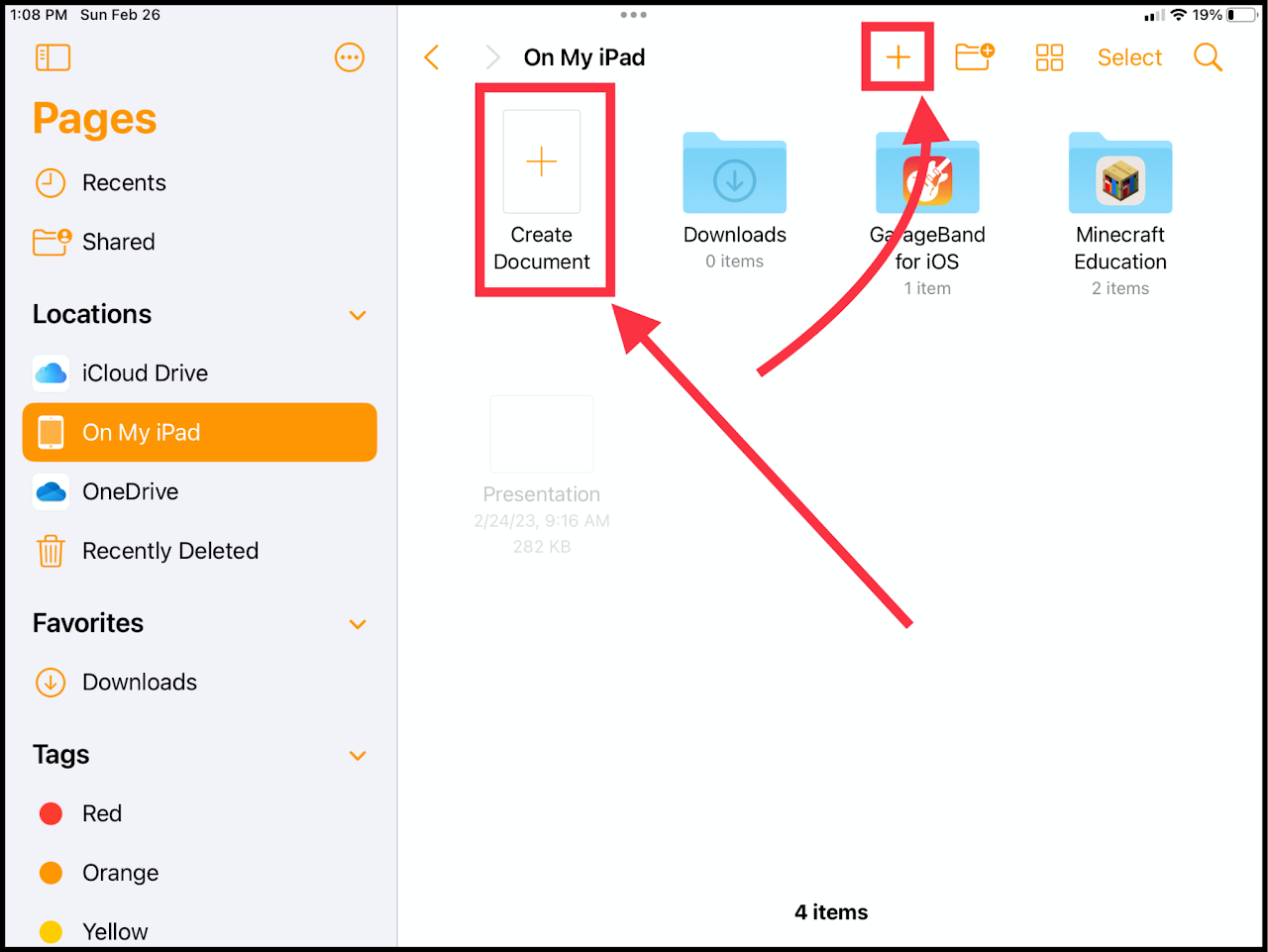](https://wiki.pwbstem.club/uploads/images/gallery/2024-01/M8zmedia.png) ### Step 2 - Choose Template Select a template of your liking. For a standard letter (8.5 x 11 in) paper, select "Blank Layout".Adding additional pages to a file created with a template will add blank pages.
[](https://wiki.pwbstem.club/uploads/images/gallery/2024-01/yZbmedia.jpg) ## How to add text in "Blank Layout" In order to type in the newly created document, create a text box using the "Objects" icon on the top of screen, and selecting text. [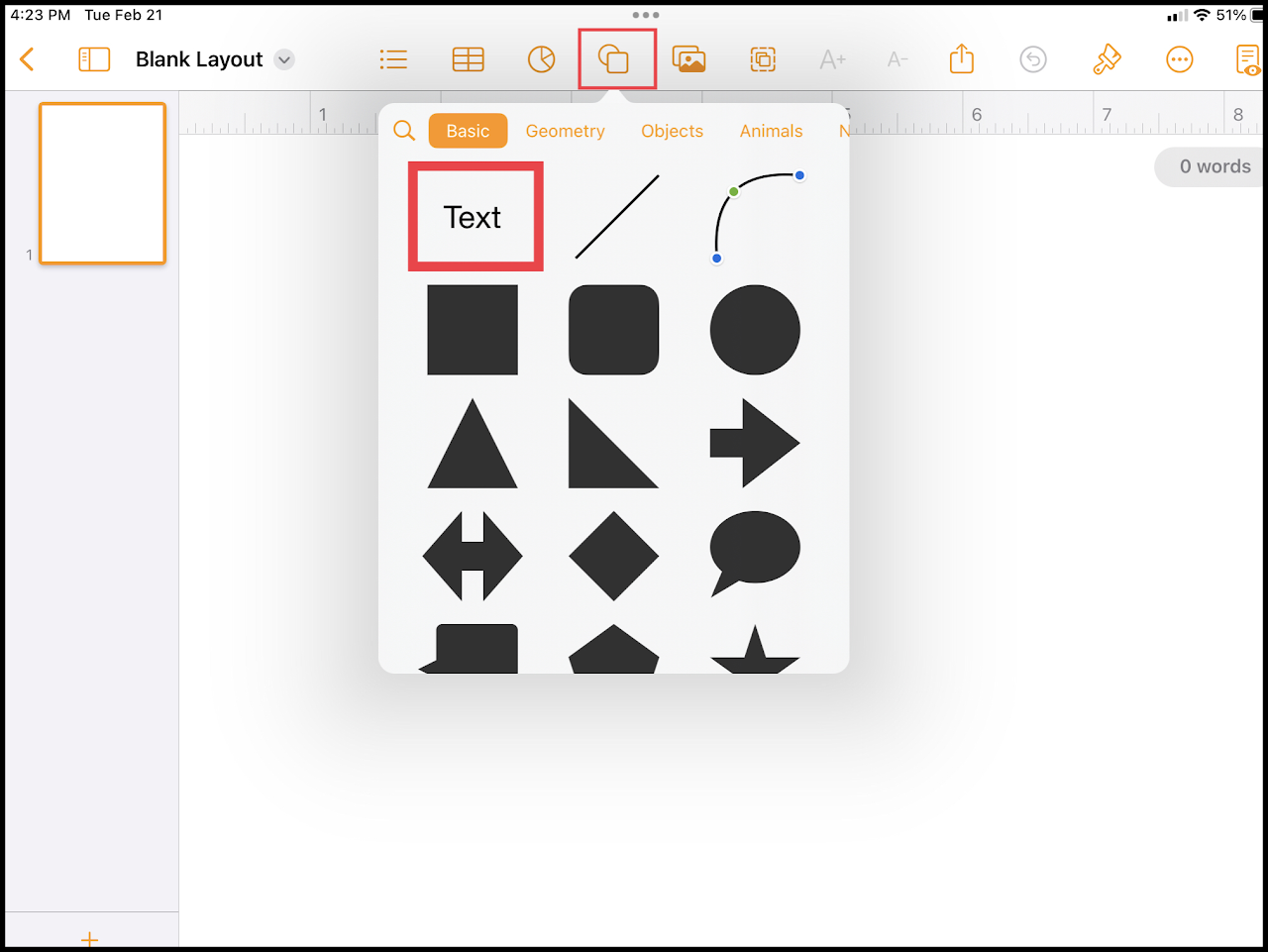](https://wiki.pwbstem.club/uploads/images/gallery/2024-01/2Iumedia.png) ## How to add pages in "Blank Layout" ### Step 1 - Enable "Page Thumbnails" On the top left of the screen select the "side bar" icon and enable "Page Thumbnails" [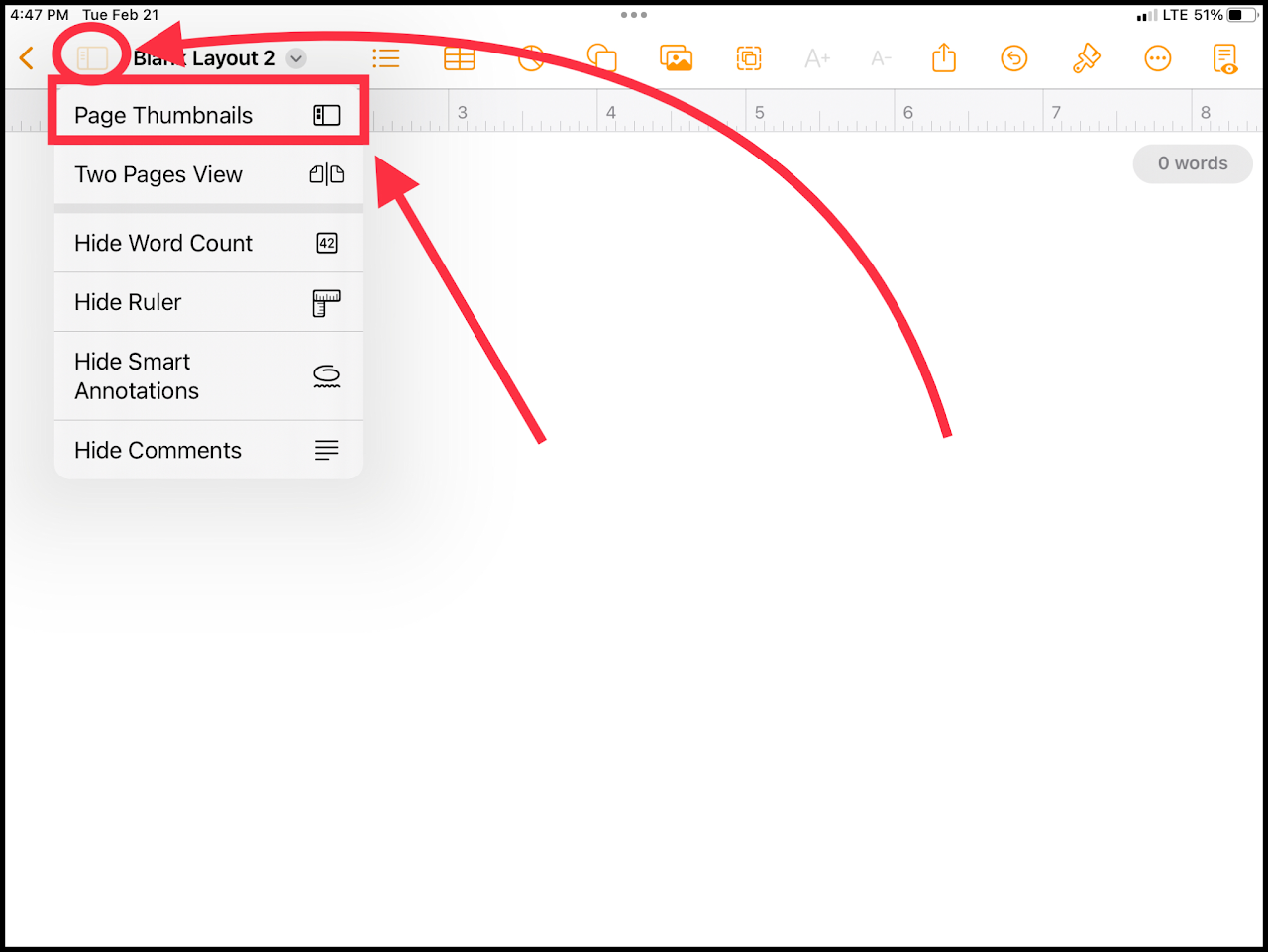](https://wiki.pwbstem.club/uploads/images/gallery/2024-01/P3amedia.png) ### Step 2 - Adding New Pages Tap the plus icon at the bottom of the page thumbnails list. [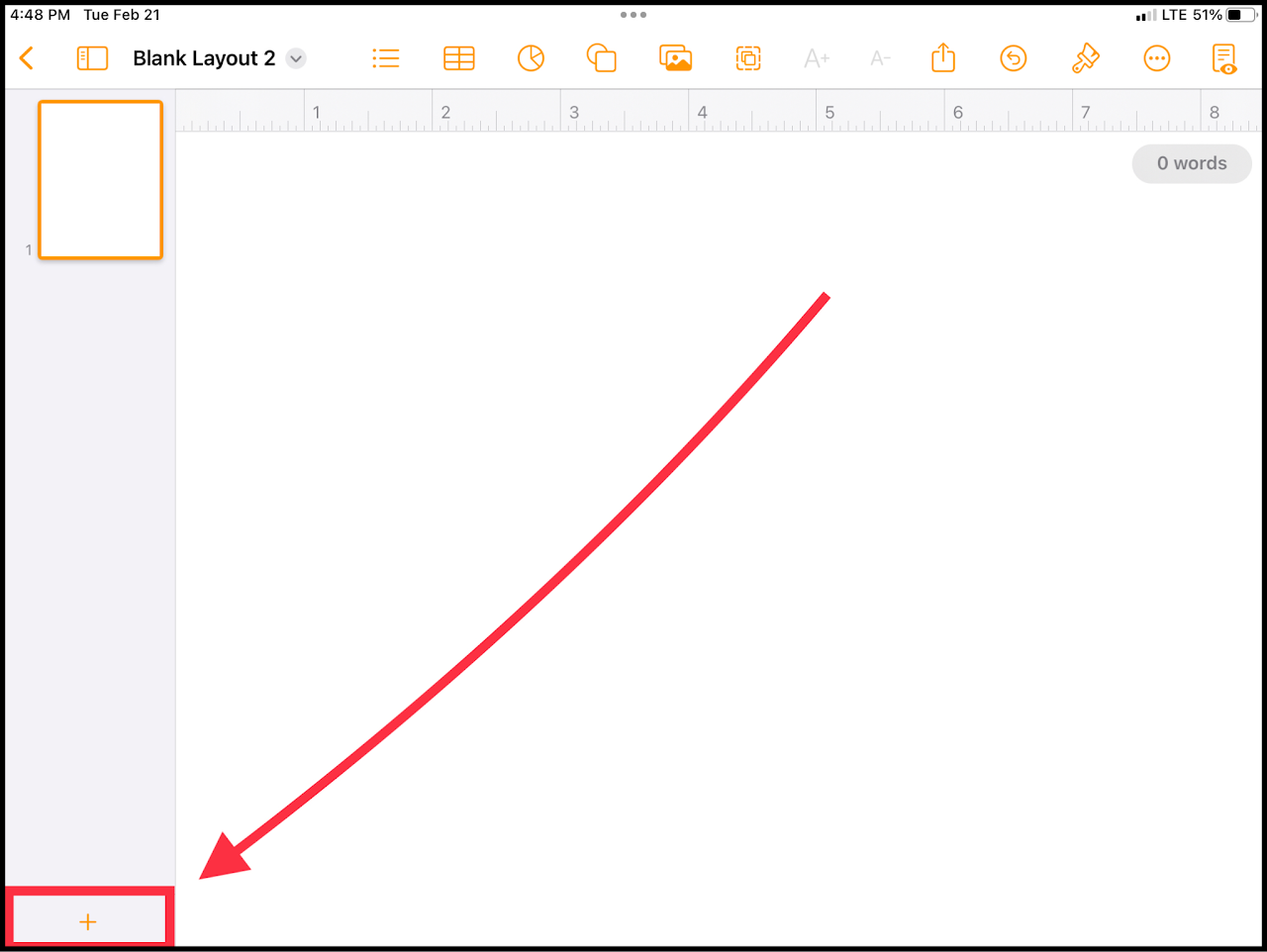](https://wiki.pwbstem.club/uploads/images/gallery/2024-01/a05media.png)