# How To Create a Table of Contents in Pages

<p class="callout info">Difficulty - Medium</p>

### Step 1 - Open text format options

Highlight the text you would like to use as a heading in your table of contents, then tap the paintbrush in the top right.![](https://lh4.googleusercontent.com/CdIVgAIV2dL7Sh-vHEBaSrfrI-3ynmPcmJ7H9fJZEB-jZlb9bCsZVYDk0NT-qyaCI7fVv3Hmf9Hgdw5Q_R288MM7T9Yk5vPRv871rQr1EsLAfhhMaFfsAWkgyBicTLlWKQ=w1280)

### Step 2 - Navigate to Paragraph Styles

Enter the "Paragraph Styles" menu.

[![media.png](https://wiki.pwbstem.club/uploads/images/gallery/2024-01/scaled-1680-/PXZmedia.png)](https://wiki.pwbstem.club/uploads/images/gallery/2024-01/PXZmedia.png)
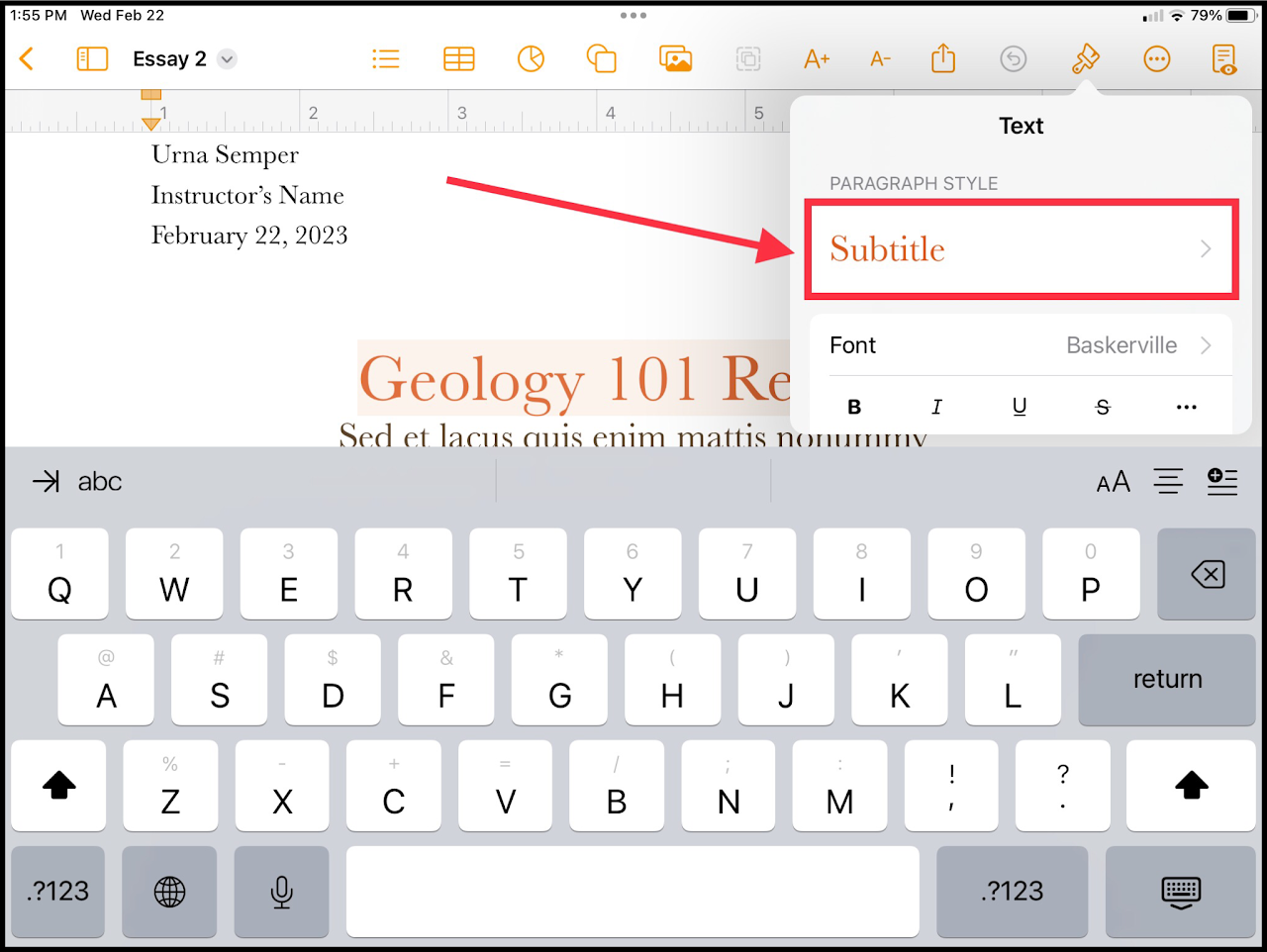
### Step 3 - Change the Paragraph Style

Select a paragraph style that matches what you would like to inputted in the table of contents.

<p class="callout info">If writing an essay, use the "Subtitle" style.</p>

### Step 4 - Navigate to the Table of Contents

Select the table of contents menu on the top of your screen.

<p class="callout info">The table of contents menu looks like a list.</p>

<div class="oKdM2c ZZyype" id="bkmrk--1"><div class="hJDwNd-AhqUyc-uQSCkd Ft7HRd-AhqUyc-uQSCkd jXK9ad D2fZ2 zu5uec" id="bkmrk--2"><div class="jXK9ad-SmKAyb"><div class="tyJCtd baZpAe"><div class="t3iYD">![](https://lh3.googleusercontent.com/fZIpKCnwS-74pq41jQNnc4Zleb6iFpLu37fM1mKAY0M6jcG18255x7DQgJAK10jKCds44CxFabPsRww8JQCgqPLKOJFxRG7a1LPtkG8-GzyPMhe32q3M5CGcuEVA6l6pOg=w1280)</div></div></div></div></div><p class="callout success">If all entries are shown, you're done! If they are missing, open the drop-down menu below.</p>

<details id="bkmrk-if-entries-do-not-sh"><summary>If entries do not show in table of contents:</summary>

### Step 5 - Change the Table of Contents Settings

If no entries are shown, select the edit icon.

<div class="oKdM2c ZZyype" id="bkmrk--3"><div class="hJDwNd-AhqUyc-uQSCkd Ft7HRd-AhqUyc-uQSCkd jXK9ad D2fZ2 zu5uec" id="bkmrk--4"><div class="jXK9ad-SmKAyb"><div class="tyJCtd baZpAe"><div class="t3iYD">![](https://lh3.googleusercontent.com/EkjB2UQ_rcuIotFlSjZsm4_9IhVjX25n31zPyW7HwrzPoGMle9hyfWXFqkjXPnvnip8yN30HnUlfyUH39R6IwKRXaptNcGFg8rnS64R7yehItacFWSnLoLWwANsv1gbzrQ=w1280)</div></div></div></div></div>### Step 6 - Add Paragraph Styles to the Table of Contents

Use the circles to the left of the options to add and remove styles from the table of contents.

<div class="oKdM2c ZZyype" id="bkmrk--5"><div class="hJDwNd-AhqUyc-uQSCkd Ft7HRd-AhqUyc-uQSCkd jXK9ad D2fZ2 zu5uec" id="bkmrk--6"><div class="jXK9ad-SmKAyb"><div class="tyJCtd baZpAe"><div class="t3iYD">![](https://lh6.googleusercontent.com/cJOjYm8Vml6gzmChvefT6WyVygaFAOjI6u1hopjykM9n7X0TzBChq-l0l6s0Tr83LW-_AckXTbJuVGNdzmdSuSPKQTGhDQK_iHWqKwSe1Hc7z_UzZfsPNtsiMc12Kyboaw=w1280)</div></div></div></div></div>### Step 7 - Using the Table of Contents

Tap on any of the newly added entries to easily jump to that section. Enjoy!

<div class="oKdM2c ZZyype" id="bkmrk--7"><div class="hJDwNd-AhqUyc-uQSCkd Ft7HRd-AhqUyc-uQSCkd jXK9ad D2fZ2 zu5uec wHaque g5GTcb" id="bkmrk--8"><div class="jXK9ad-SmKAyb"><div class="tyJCtd baZpAe"><div class="t3iYD">![](https://lh6.googleusercontent.com/xOlm567qBNzyiVtZZmwwlELF0ME0v5tGqsvbpdope2tc88jxLHDV2Zz6nmS_KXXK7LwWm1aScq9weY0HJel34uREKZa0ANdnvWhUS7oum55DfmaFPz_VBYS4y2Cdo5uNzg=w1280)</div></div></div></div></div></details><div class="oKdM2c ZZyype" id="bkmrk--9"><div class="hJDwNd-AhqUyc-uQSCkd Ft7HRd-AhqUyc-uQSCkd jXK9ad D2fZ2 zu5uec wHaque g5GTcb" id="bkmrk--10"><div class="jXK9ad-SmKAyb"><div class="tyJCtd baZpAe"><div class="t3iYD">  
</div></div></div></div></div>