Difficulty - Easy
### Step 1 - Open Format Options Select the paintbrush icon in the top right of your screen.Make sure there are no items selected in the document to ensure that the correct menu shows.
[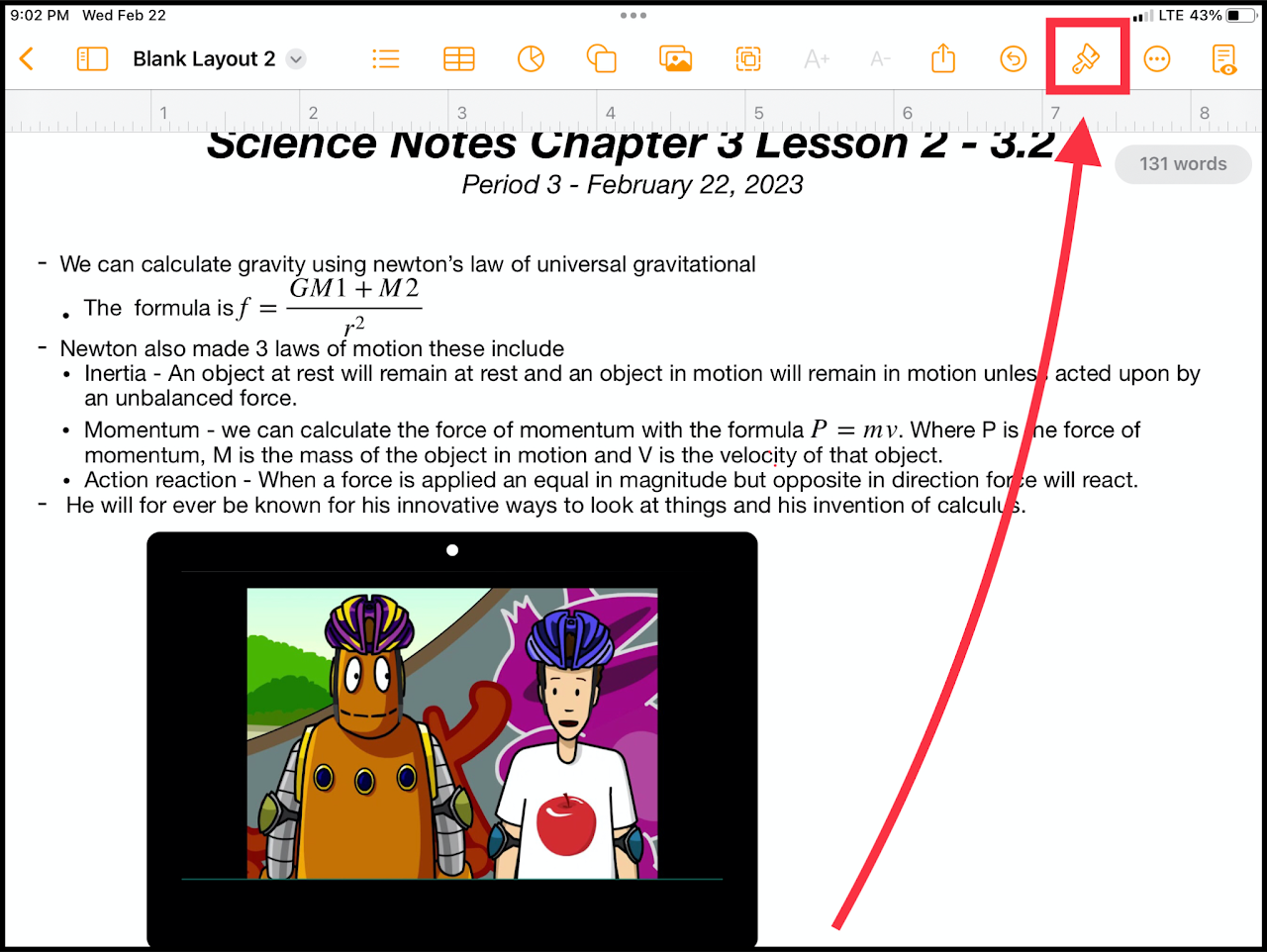](https://wiki.pwbstem.club/uploads/images/gallery/2024-01/change-backround-step-1.png) ### Step 2 - Select "Background After opening the format options, select the "Background" option. [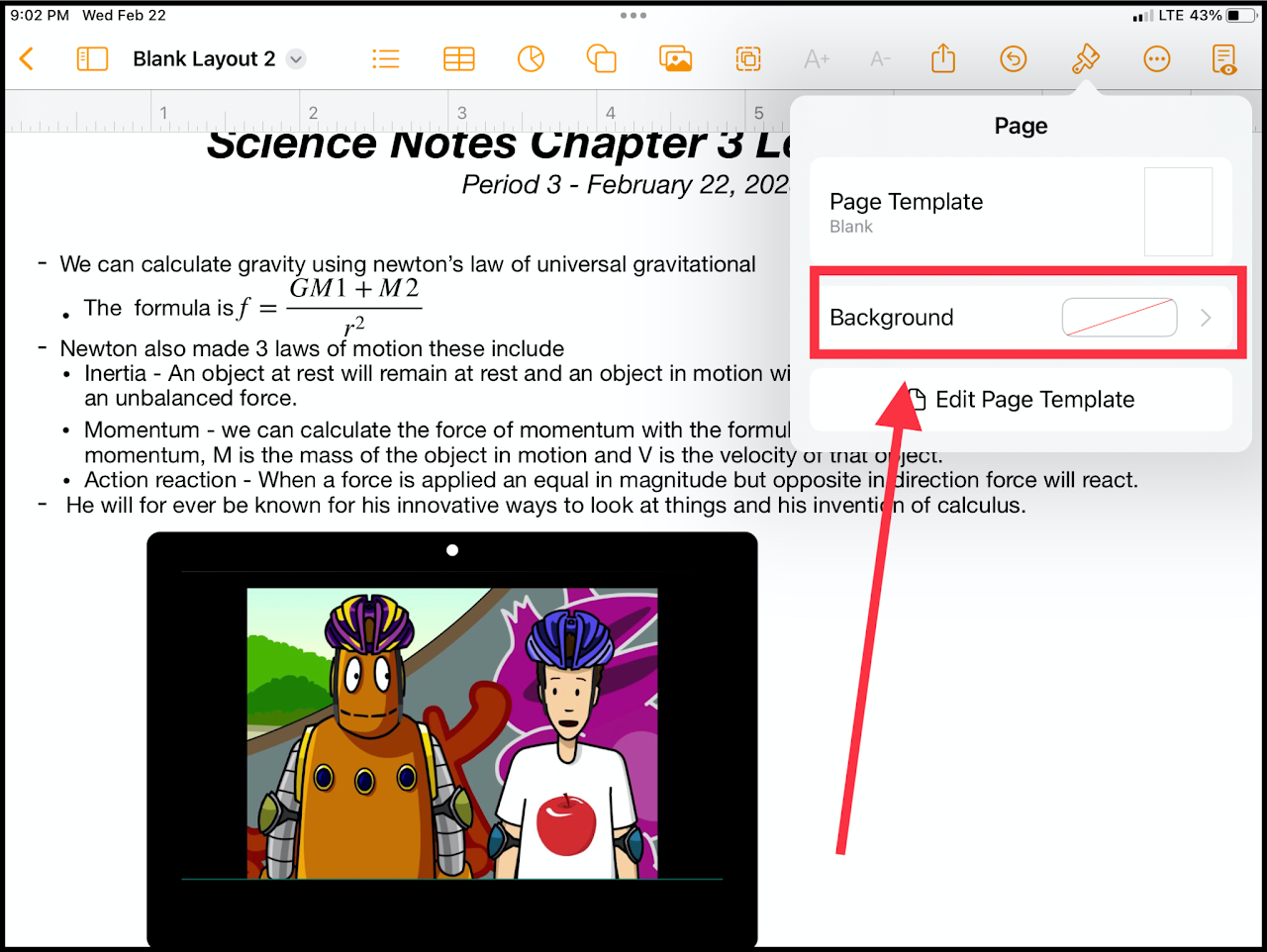](https://wiki.pwbstem.club/uploads/images/gallery/2024-01/change-backround-step-2.png) ### Step 3 - Change The Background The tabs at the top of the background menu allow further customization.Some of these options may make the text harder to read. Make sure to change the text color accordingly.
[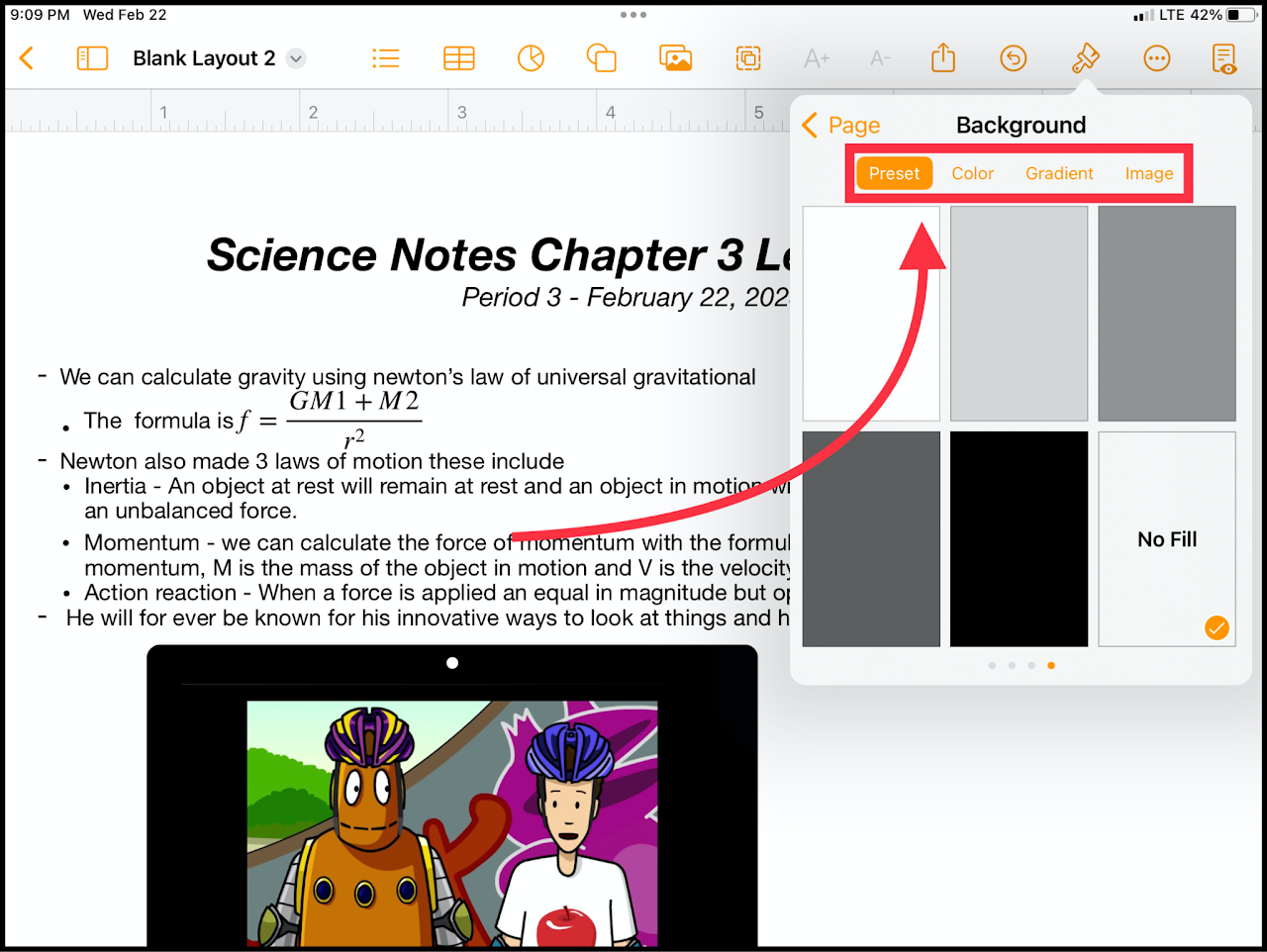](https://wiki.pwbstem.club/uploads/images/gallery/2024-01/change-backround-step-3.png)